
Overview
The Kommo CRM integration allows your agent to create and manage deals and contacts directly in your Kommo account. This enables your AI assistant to perform CRM operations without human intervention, streamlining your sales process and customer management.
App creation on Kommo
- Log in to your Kommo account as an administrator
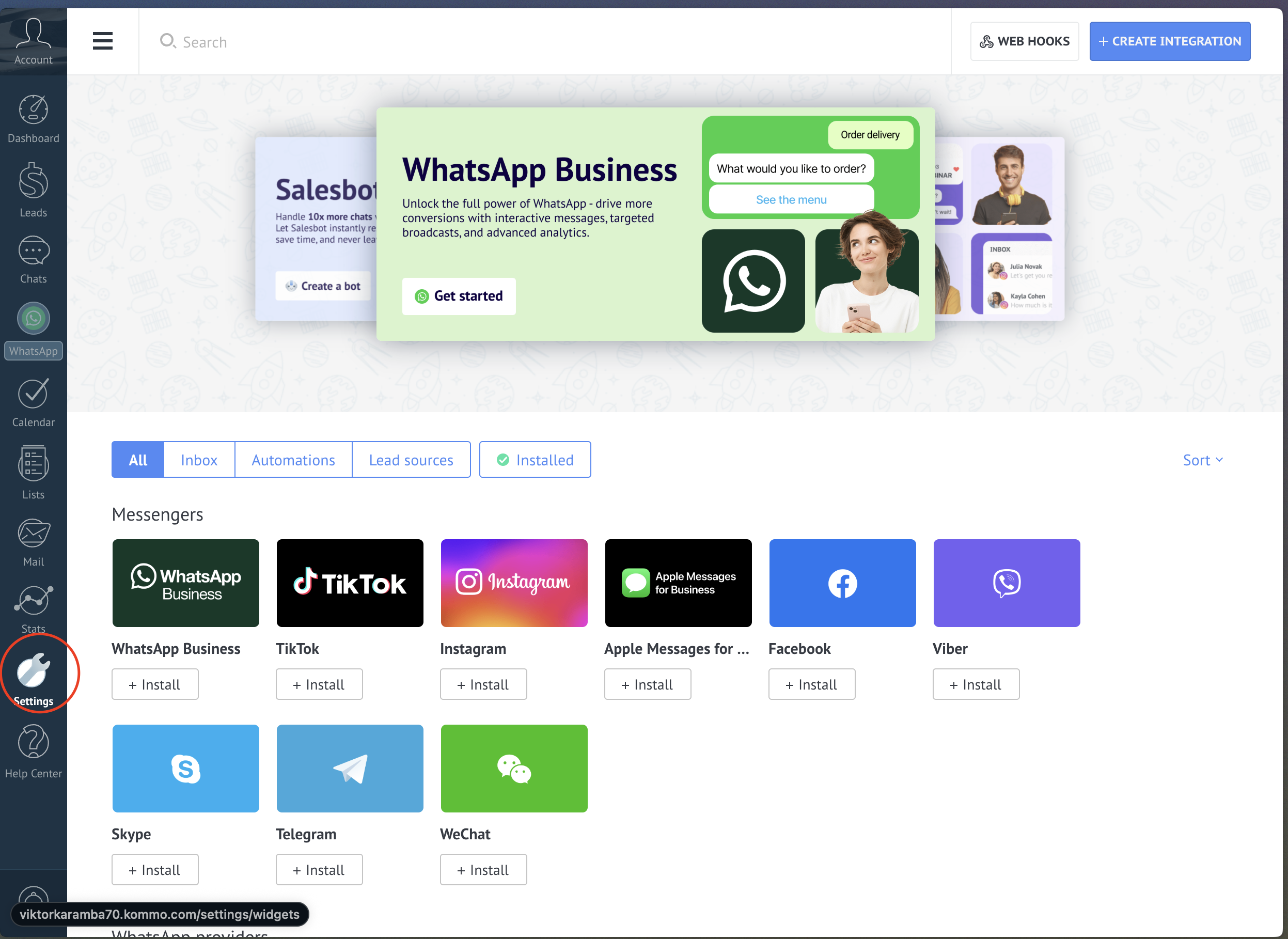
- Navigate to Settings
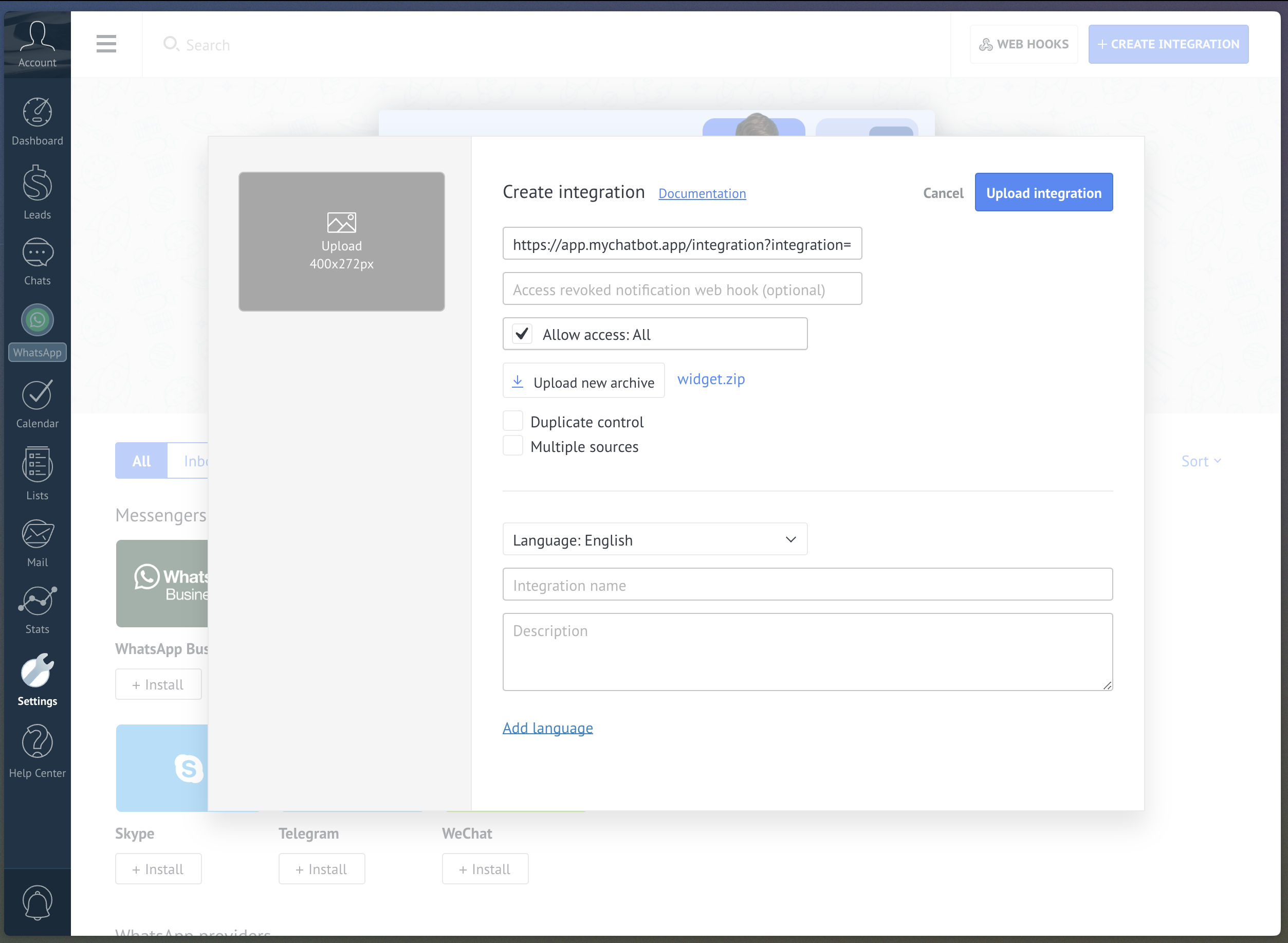
- Click Create Integration
- Fill in the required information: Redirect URI = https://app.mychatbot.app/integration?integration=Kommo; Integration name = MyChatBot Integration; and upload the widget file (Download widget.zip)
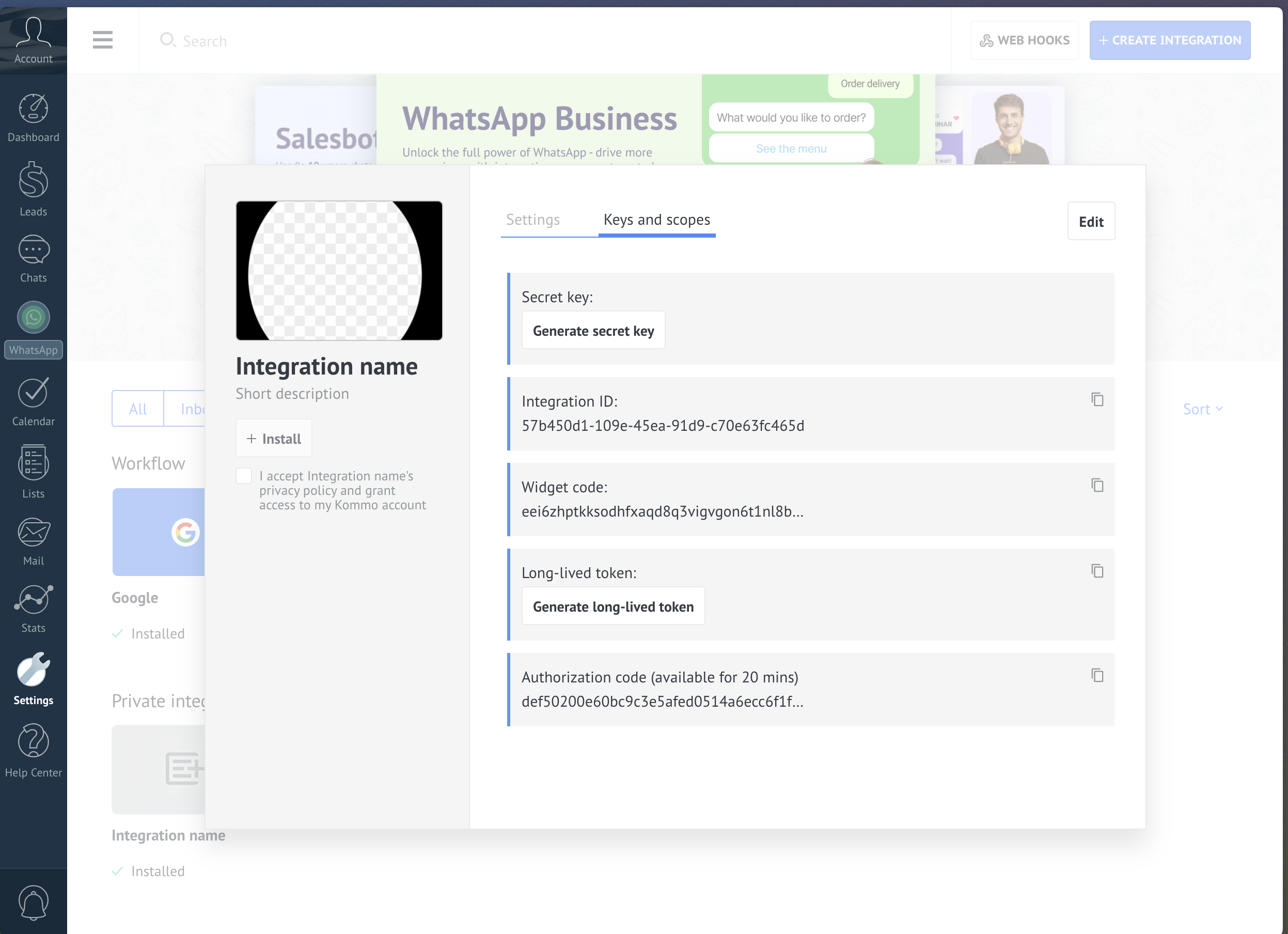
- Click Generate long-lived token to create your API-token
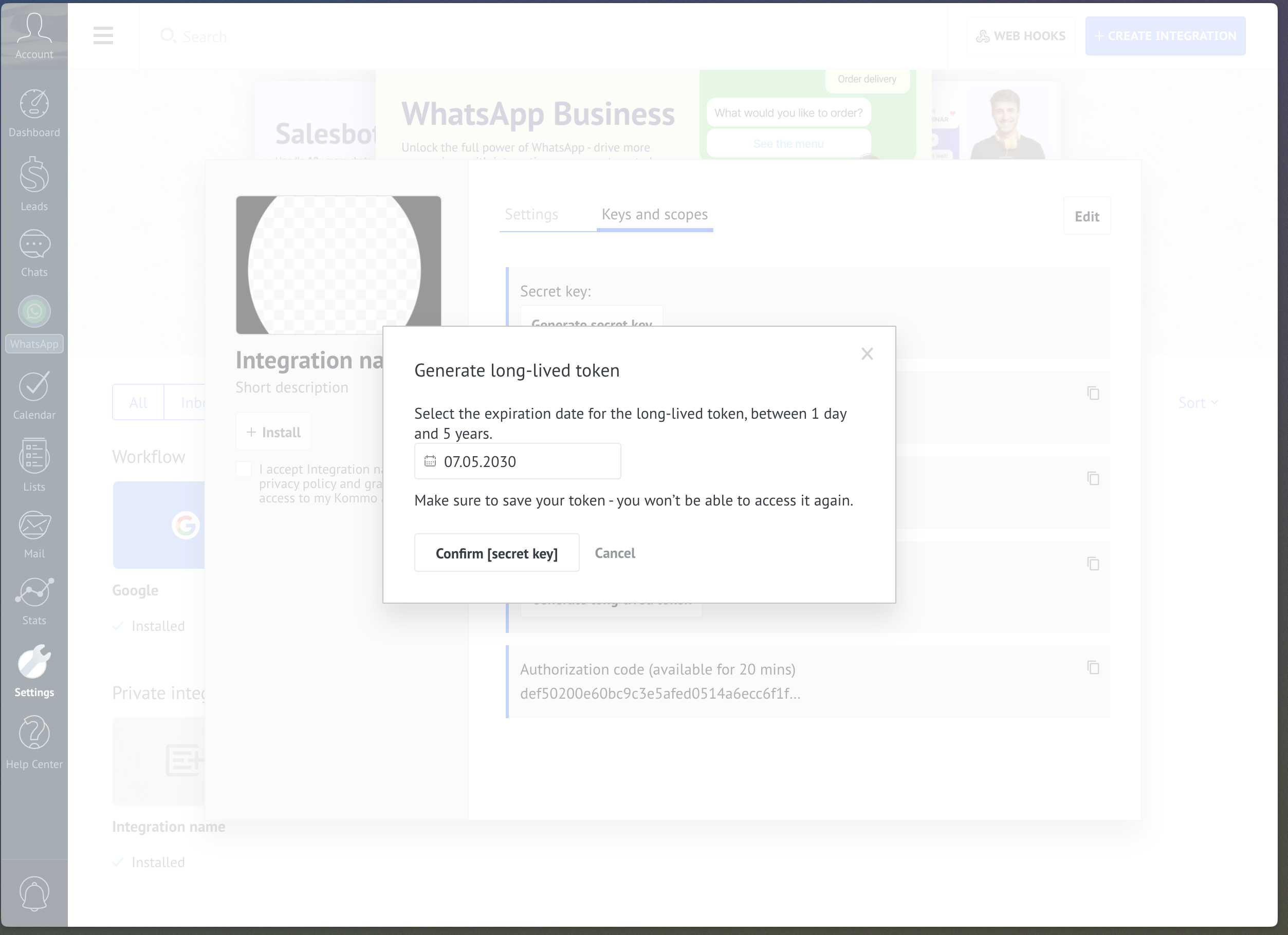
- Select the expiration date, 5 years
- Copy the Long-lived token
Creating integration on MyChatBot
- Navigate to the Integrations tab in your dashboard
- Select the agent you want to connect to Kommo
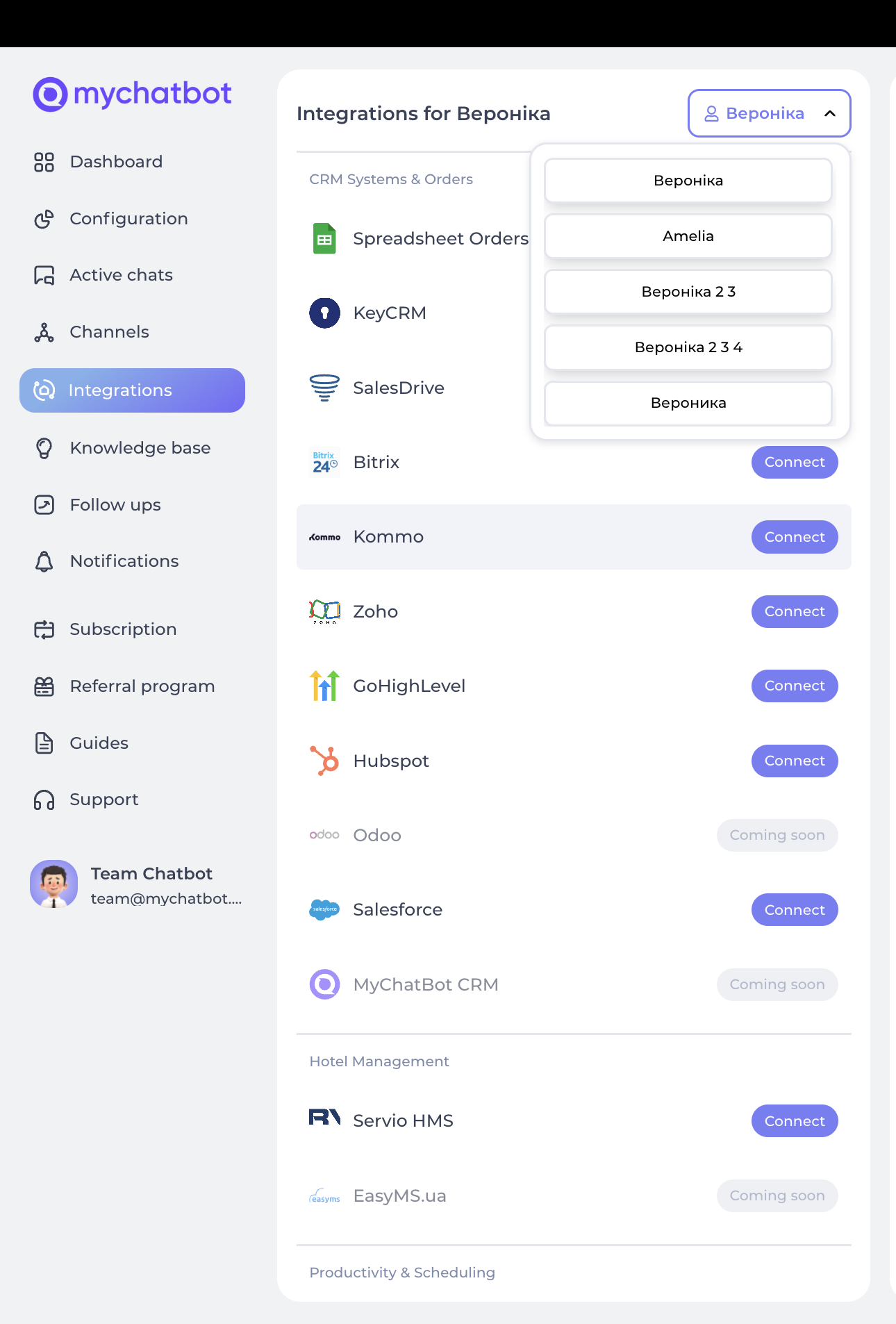
- Scroll down to find Kommo CRM in the integrations list
- Click Connect
- Provide Domain (e.g. your-company.kommo.com) and API Key (the Secret Key from your Kommo integration)
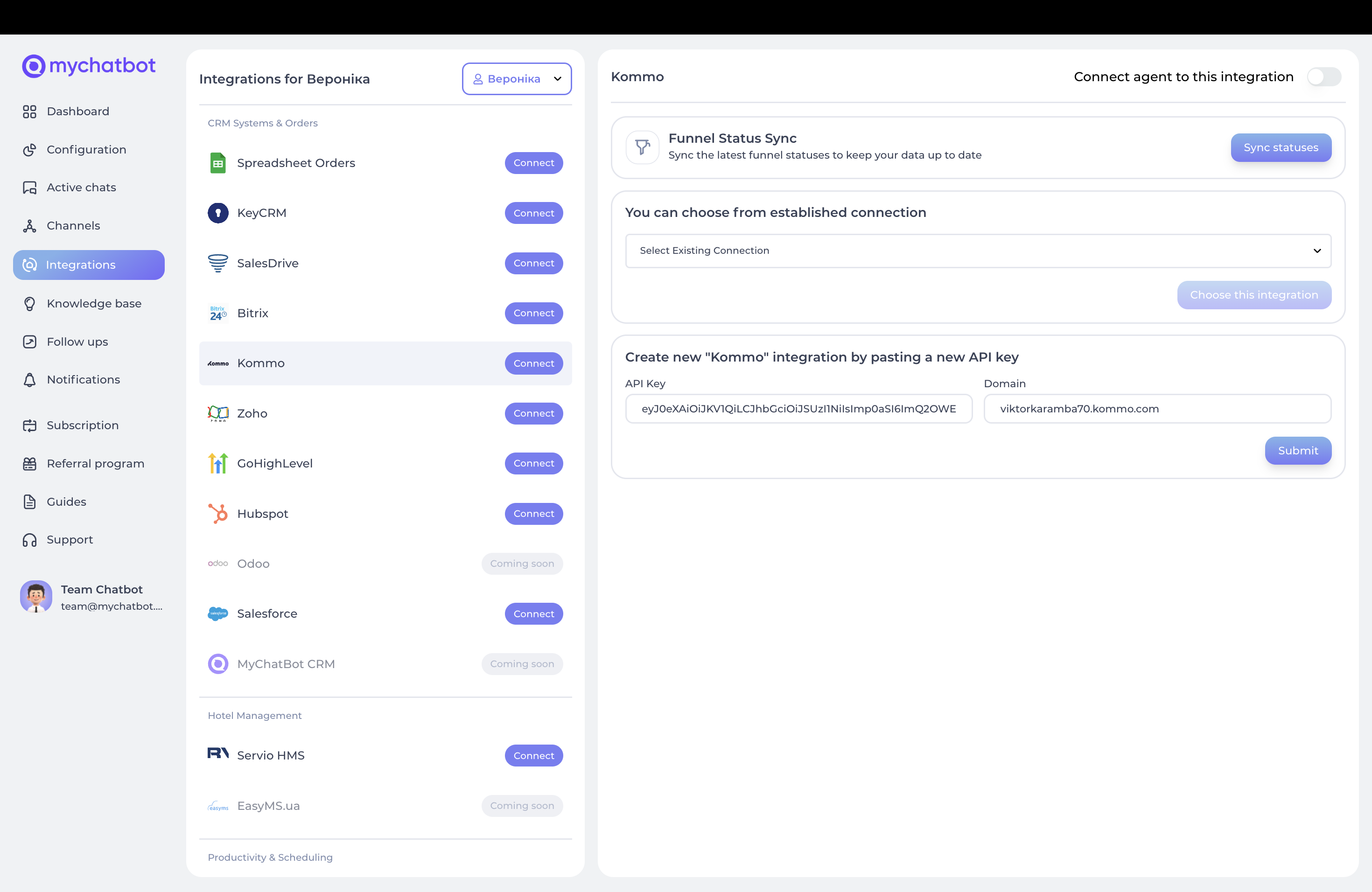
- Click Submit to save your integration
Entities & data fields configuration
After connecting, configure which entities and fields your agent can access:
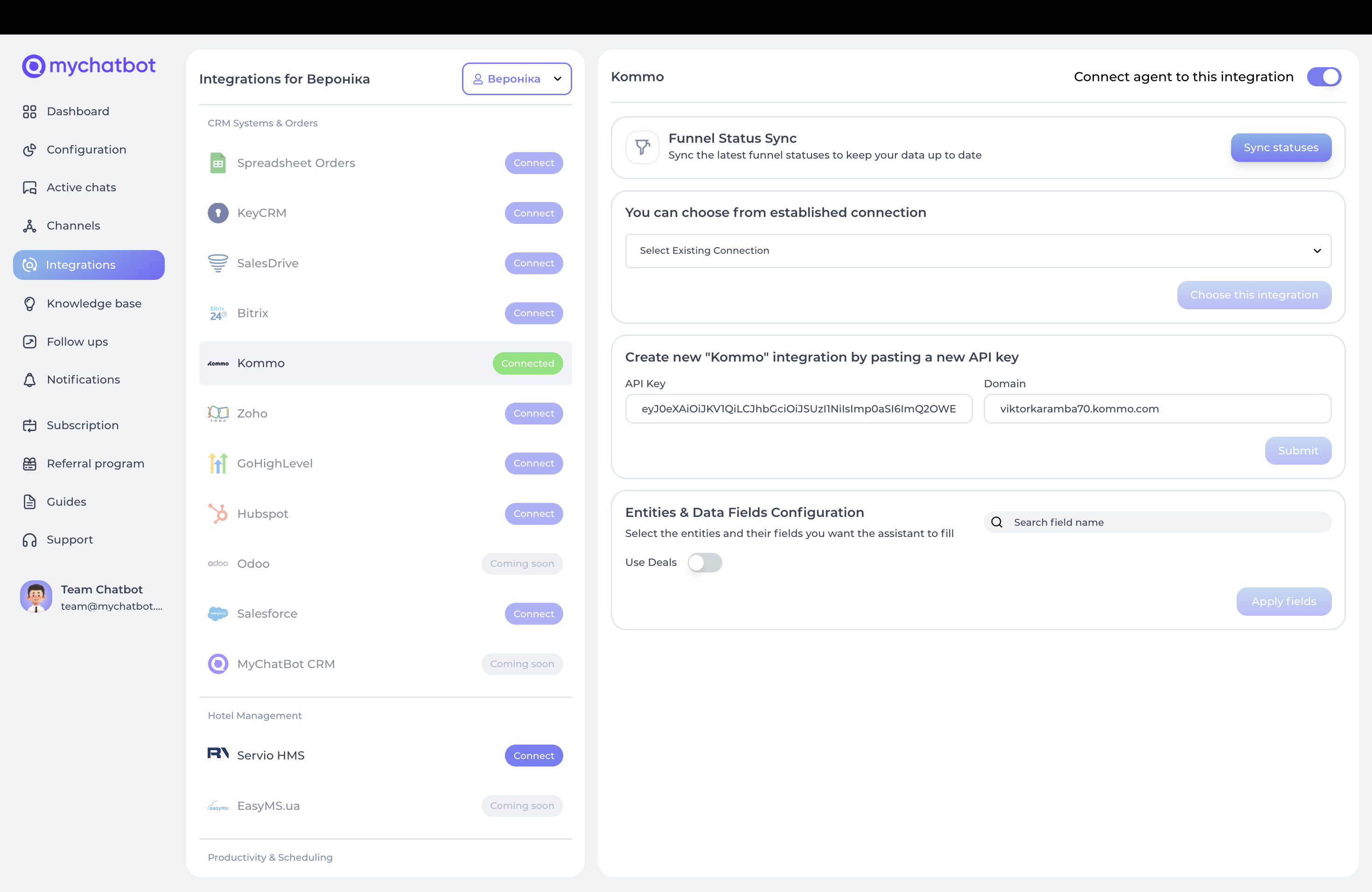
Toggle Use Deals to enable deal management. For the entity select standard Kommo fields and any custom fields, then click Apply fields. Use Sync statuses to sync funnel statuses.
Entity types: Deals and Contacts. Field types: Standard and Custom. Special fields: Status (must match Kommo statuses; updated via Sync statuses), Source (auto-set to "AI-" + assistant name), Chat Link (auto-added as a comment linking to the conversation). Pipelines: select the pipeline in the dashboard; the agent uses it when creating deals.
Available tools
After connecting, your agent gets two tools:
1. edit_crm_deal, updates existing deals or creates new ones (full_name required, phone, price optional, Status, custom fields). A contact is auto-created/found by phone, the deal is linked, a chat link is added, and the source identifies the AI.
2. add_crm_client_contact, creates/updates contacts (full_name required, phone required). If a deal already exists it is updated; the MyChatBot client info is also updated.
Configuration in agent instructions
Creating & updating deals:
When a customer expresses interest in our services, use edit_crm_deal in Kommo with the following information:
- Use their full name
- Include their phone number
- Set price if provided
- Set status to "New"
- Add any relevant notes to the comments field
Deal progression:
When a customer completes a payment:
1. Use edit_crm_deal to update the deal stage to "Closed Won"
2. Update the deal amount to match the final purchase value
3. Add payment details to the comments field