
Overview
The MCP (Model Context Protocol) integration allows your agent to connect with custom tools and integrations using the Model Context Protocol. It uses Composio as the provider and enables your AI assistant to access external services and APIs through custom MCP tools, without direct API integration requirements.
Prerequisites
Before setting up MCP integration: Login to Composio, create an account at app.composio.dev; Create a new project, click Create New Project, provide a name and optionally select one of the default auth configs.
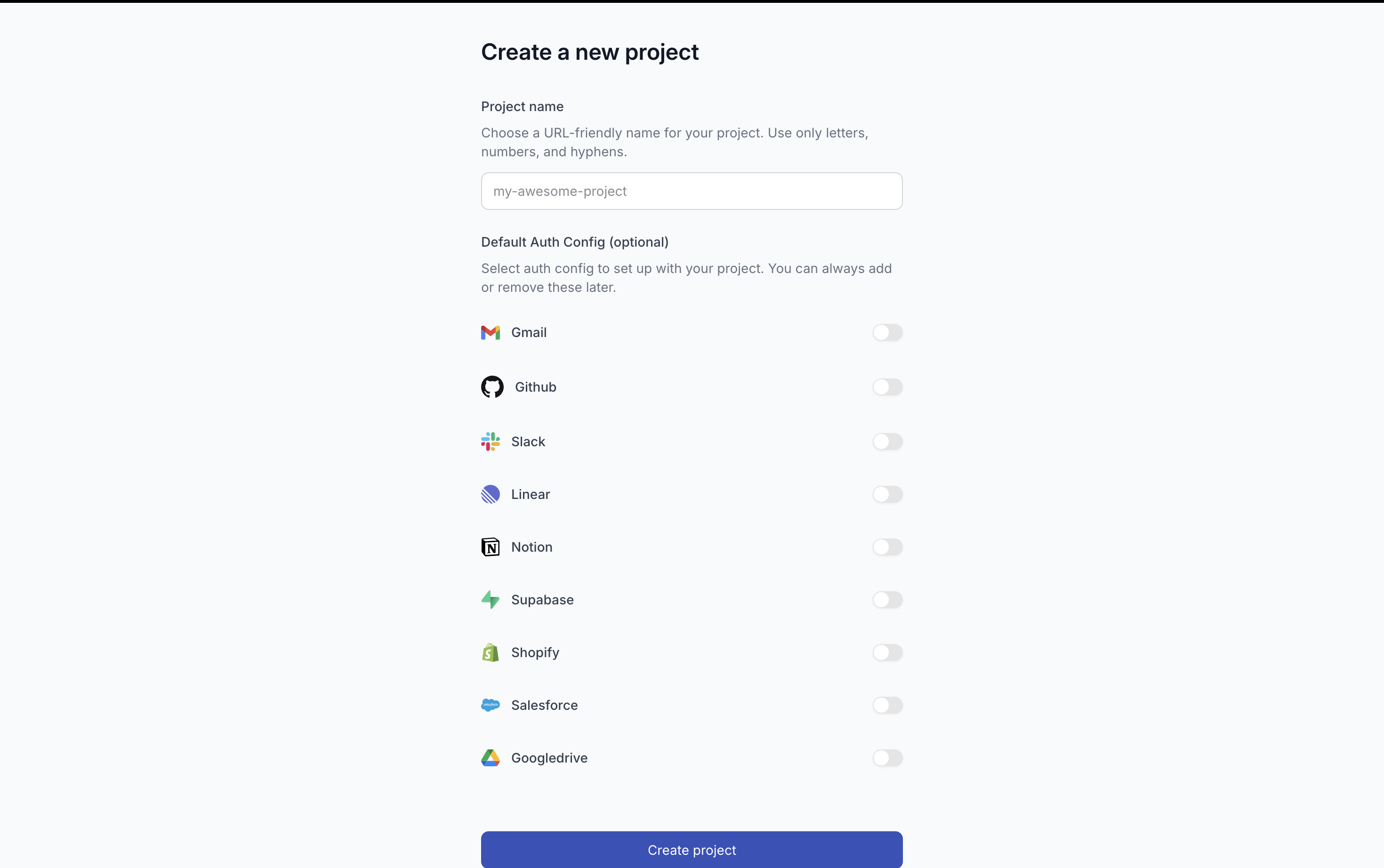
Creating a custom MCP server on Composio
Step 1, Login: go to app.composio.dev and sign in.
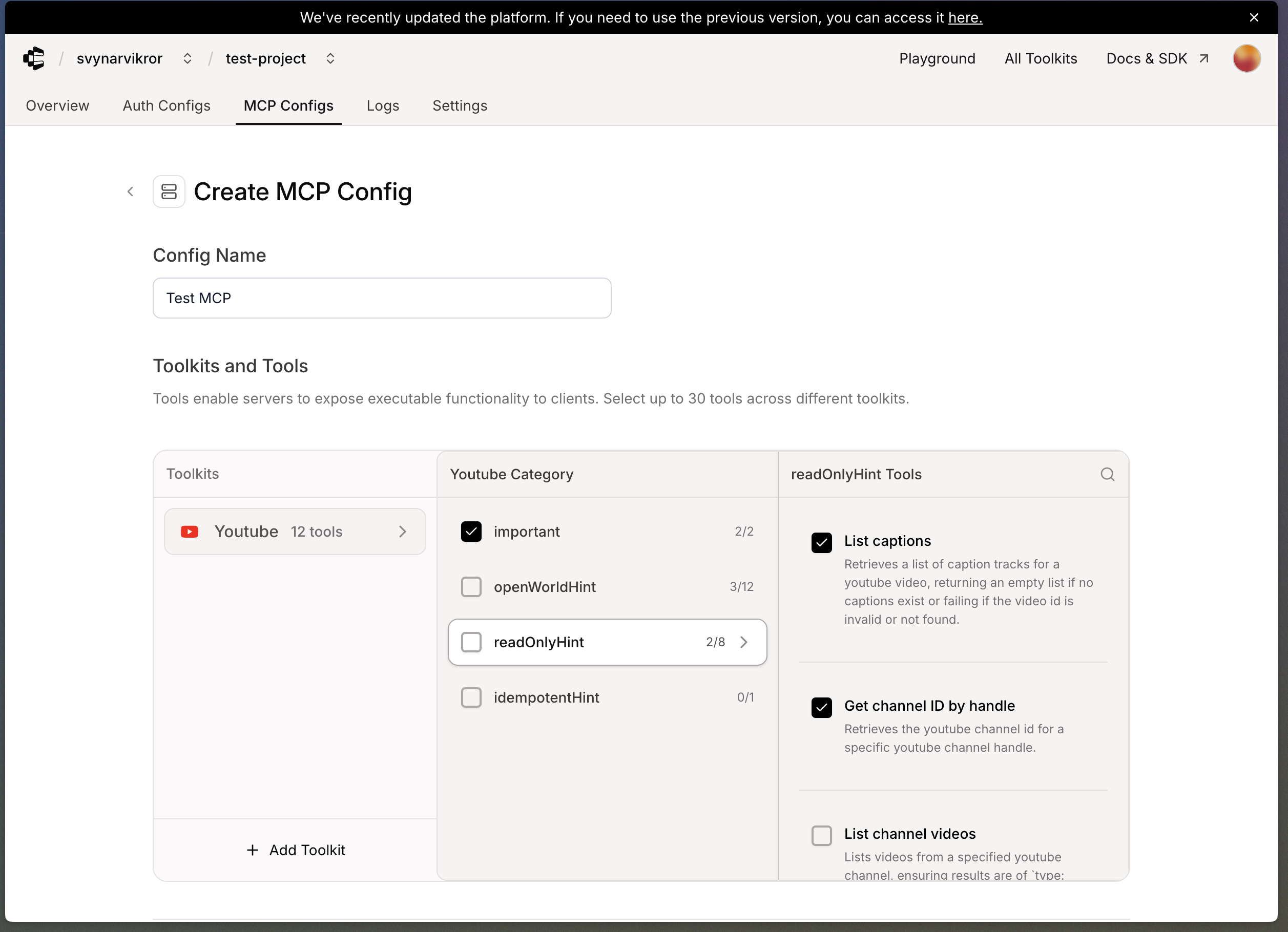
Step 2, Create MCP server: open the MCP Configs tab → Create MCP Config;
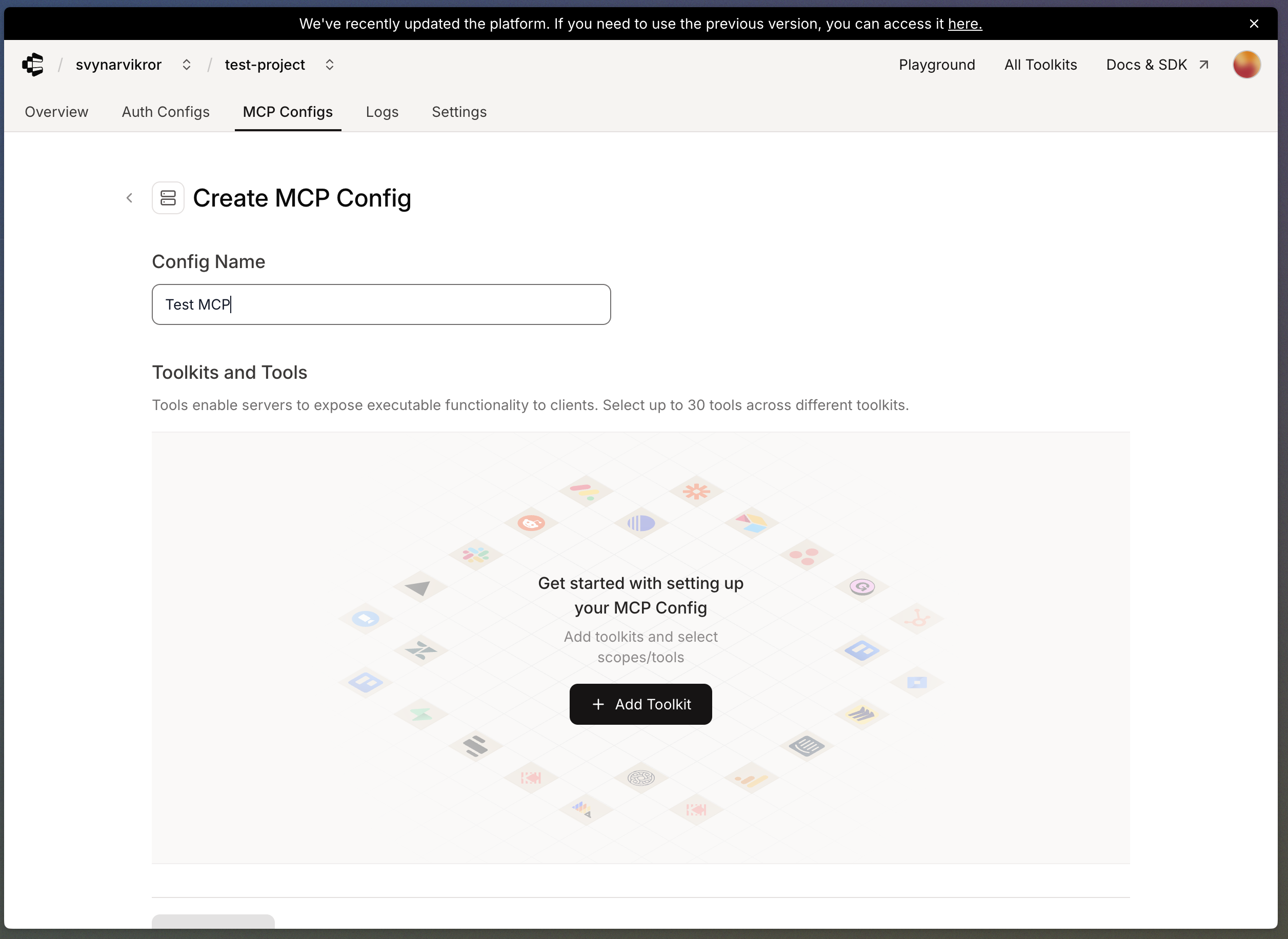
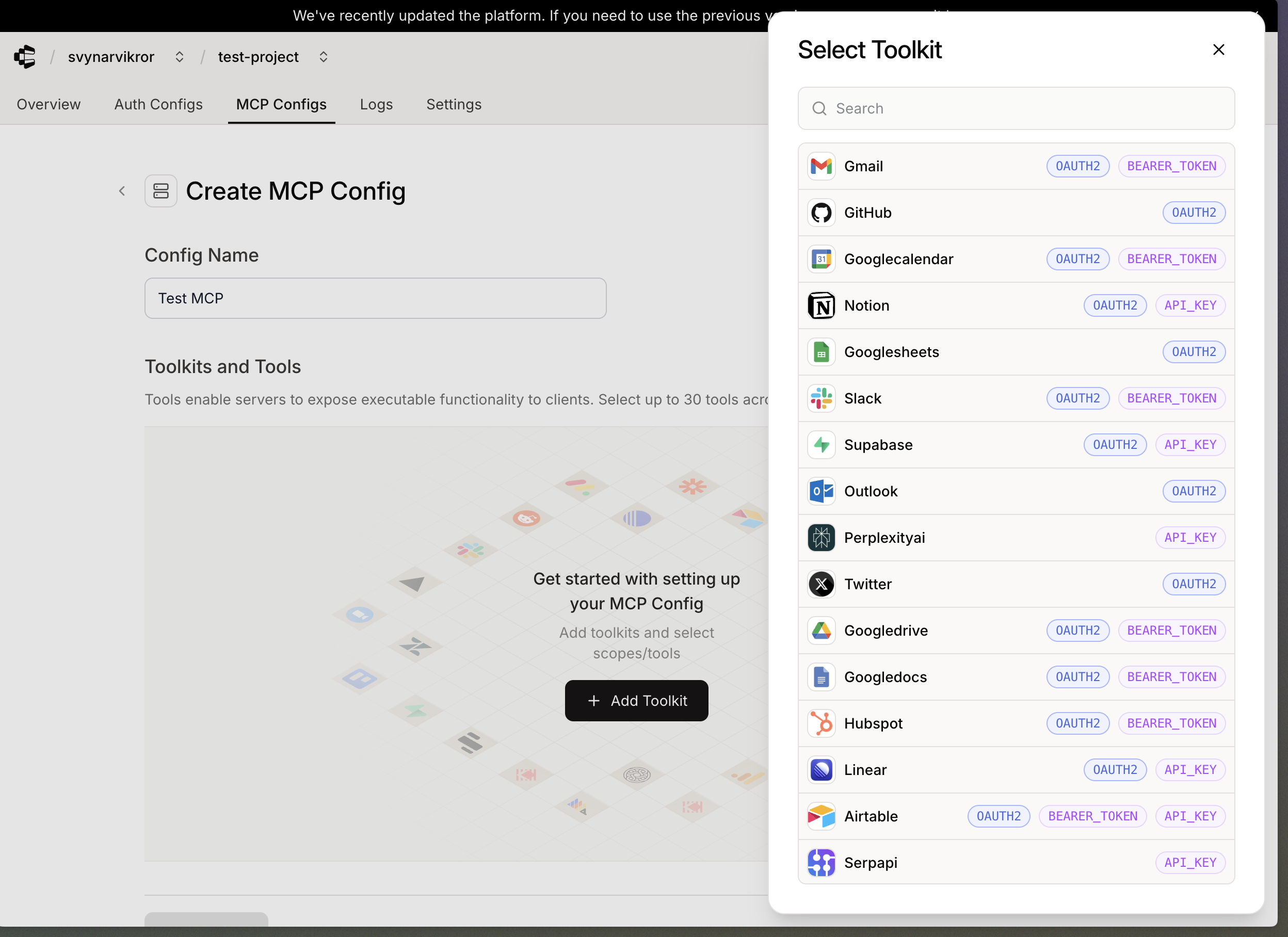
browse or search for integrations (Google Calendar, Slack, GitHub, etc.); click the integration;
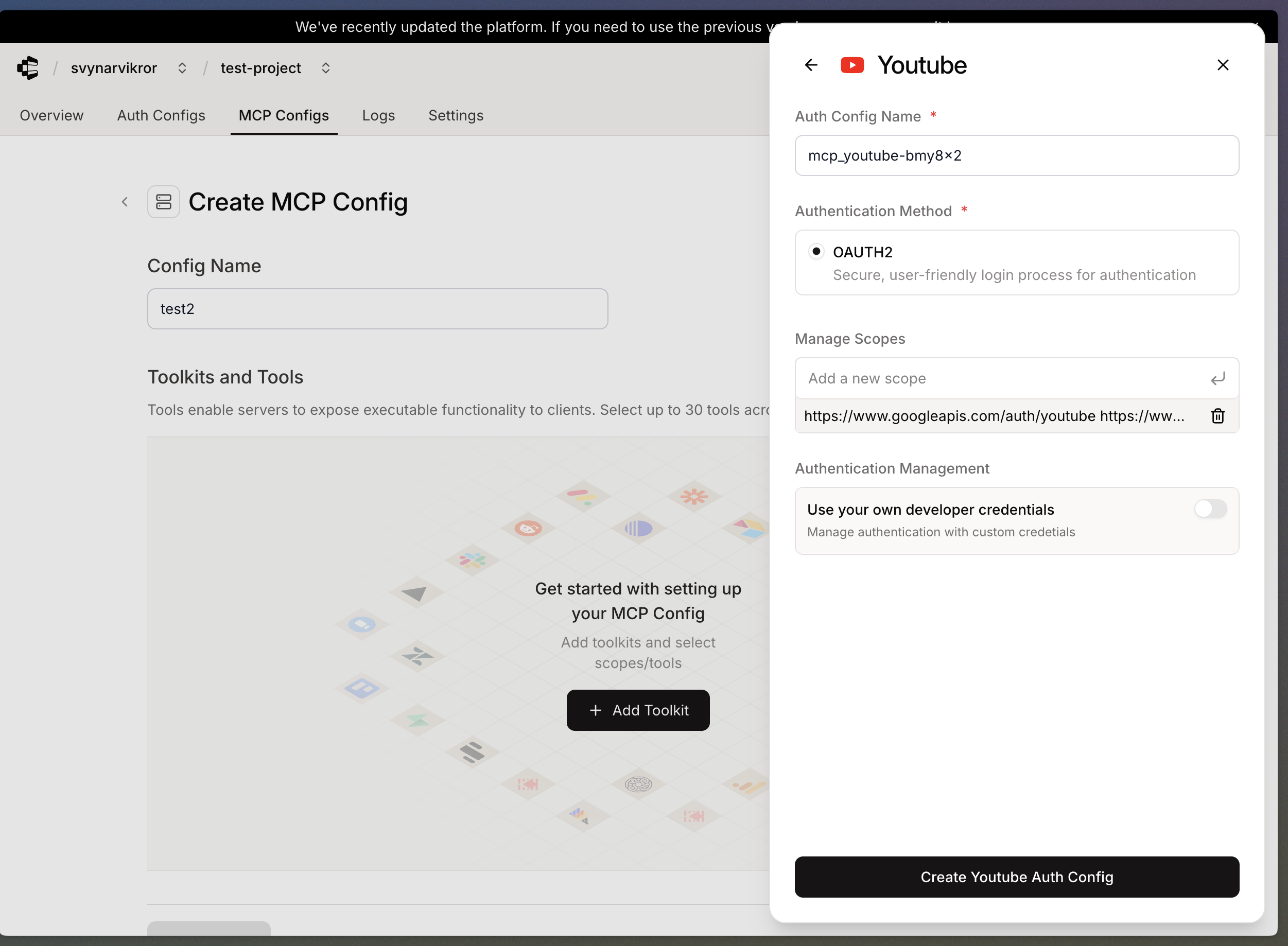
create the auth config of the selected toolkit;
choose the tools you want from that integration; click Create MCP.
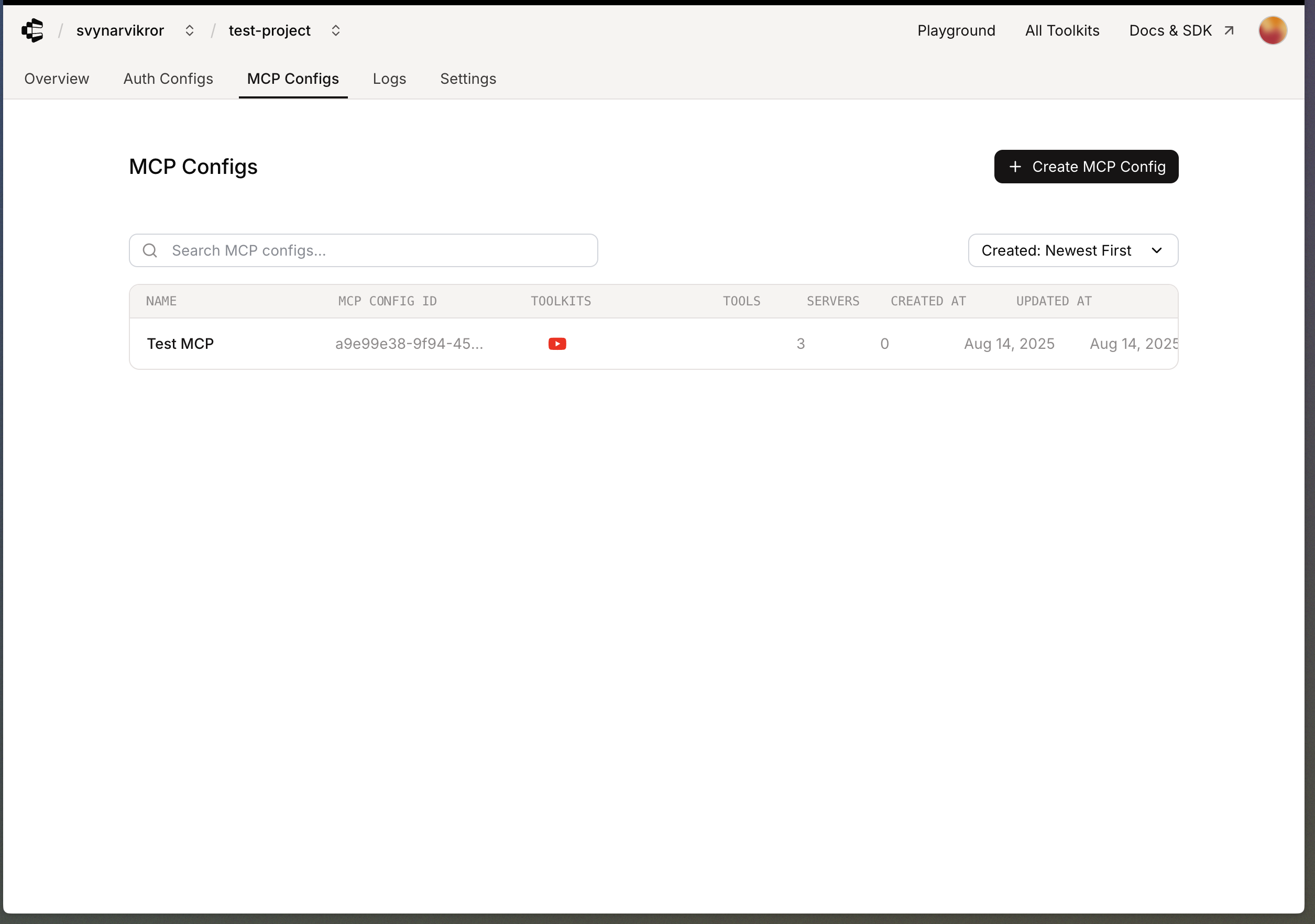
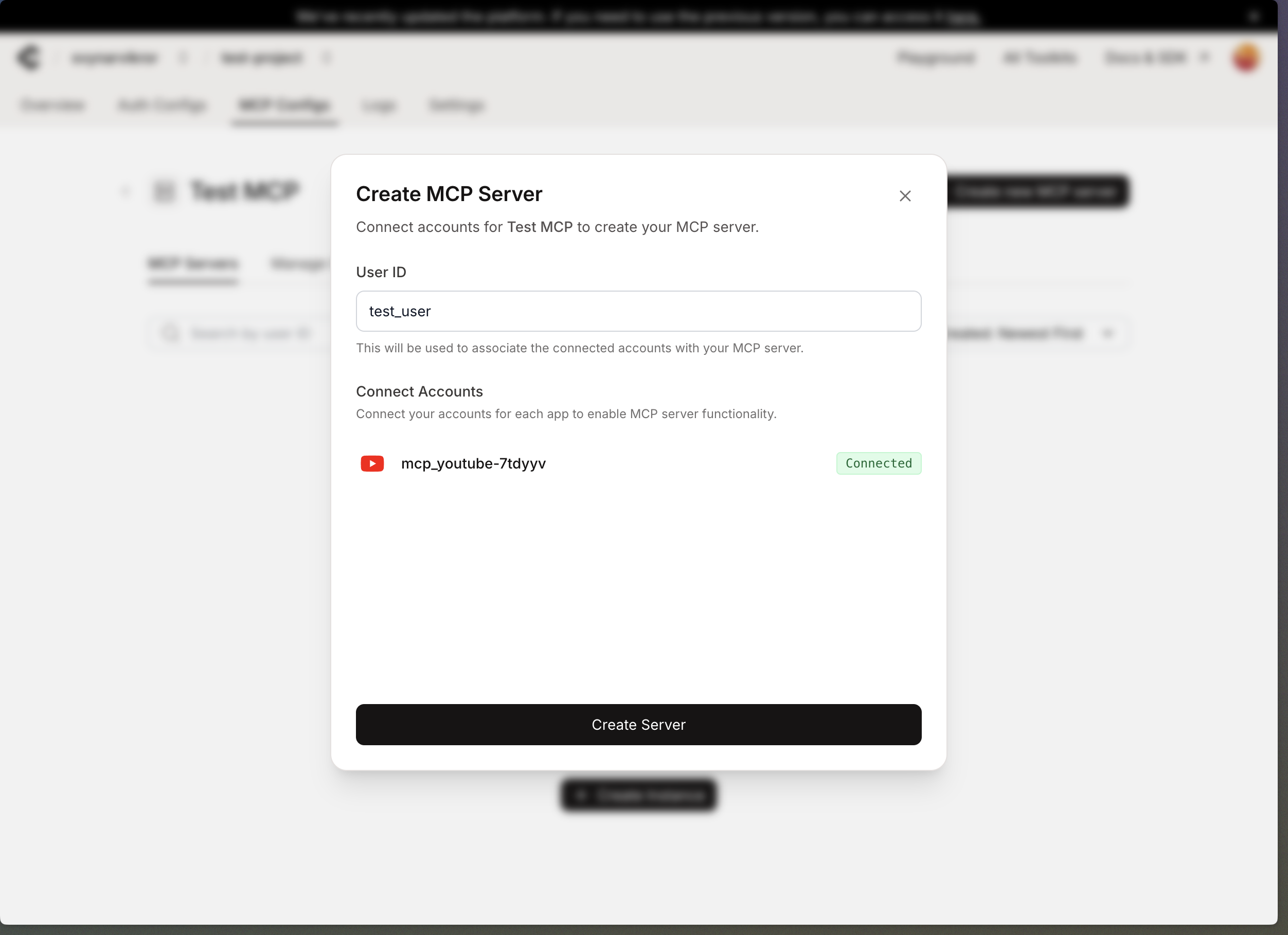
Step 3, Create new instance: in MCP Configs select your server →
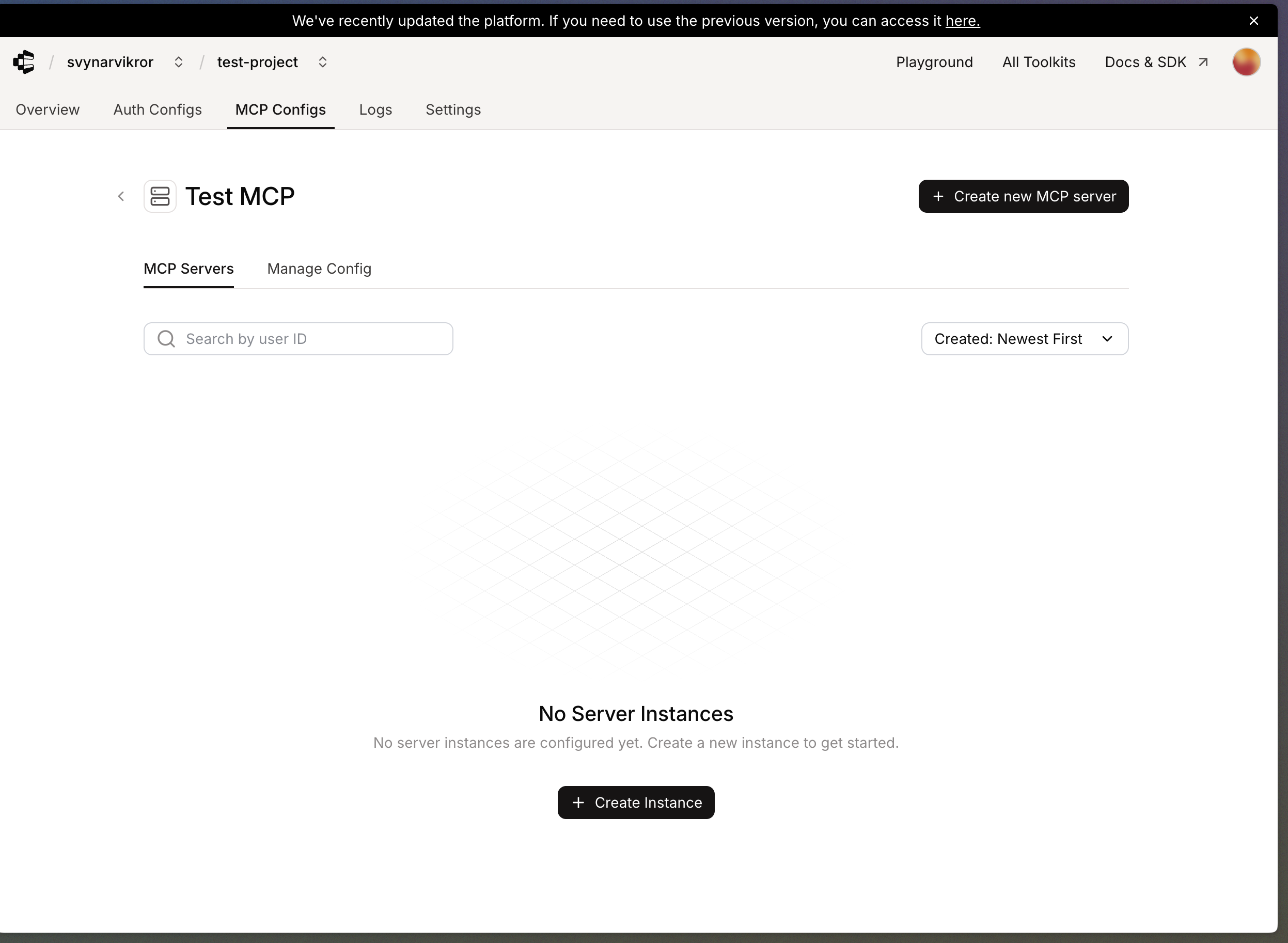
Create Instance;
enter a user id and press Connect Account;
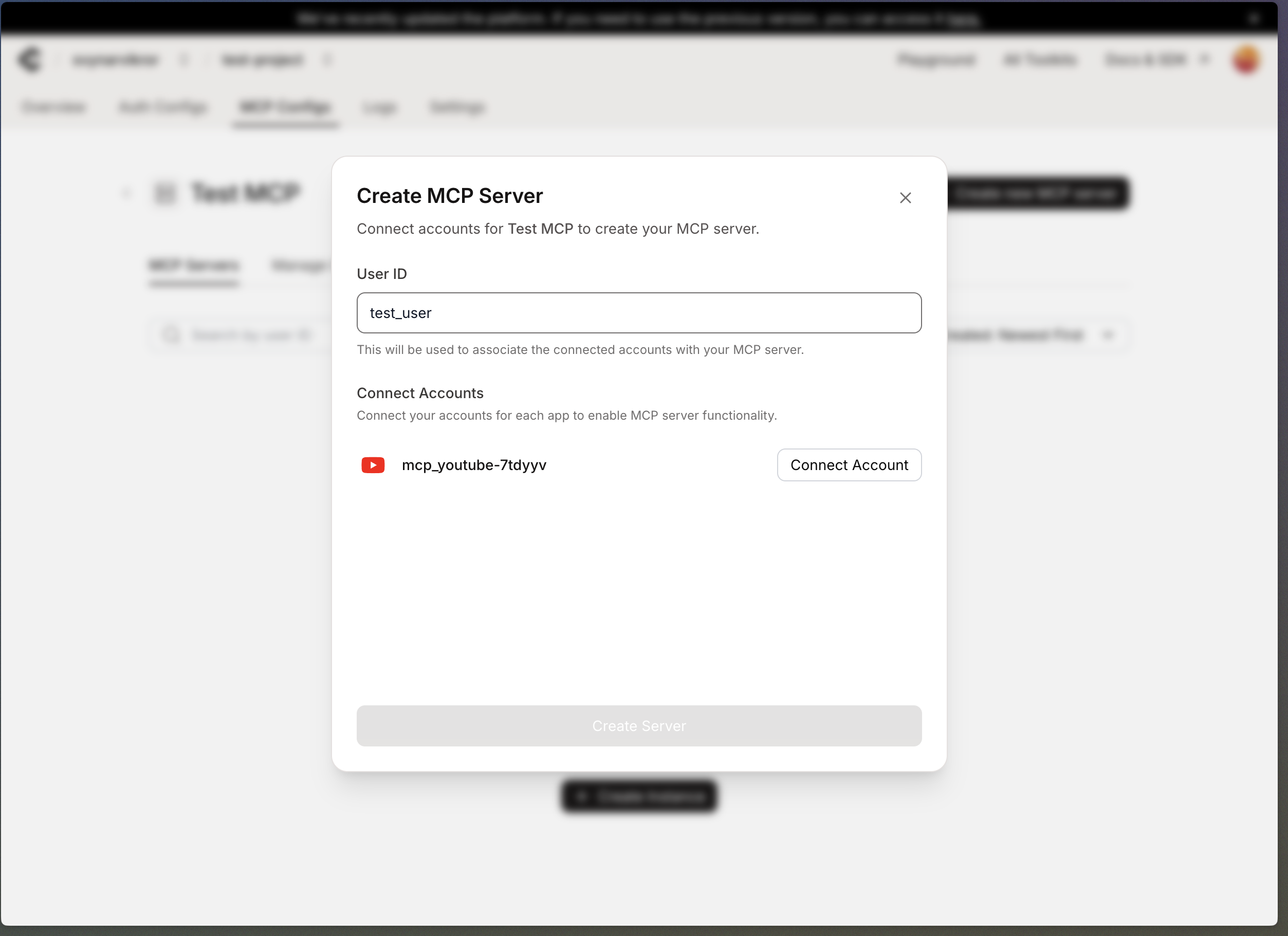
pass authentication and click Create Server;
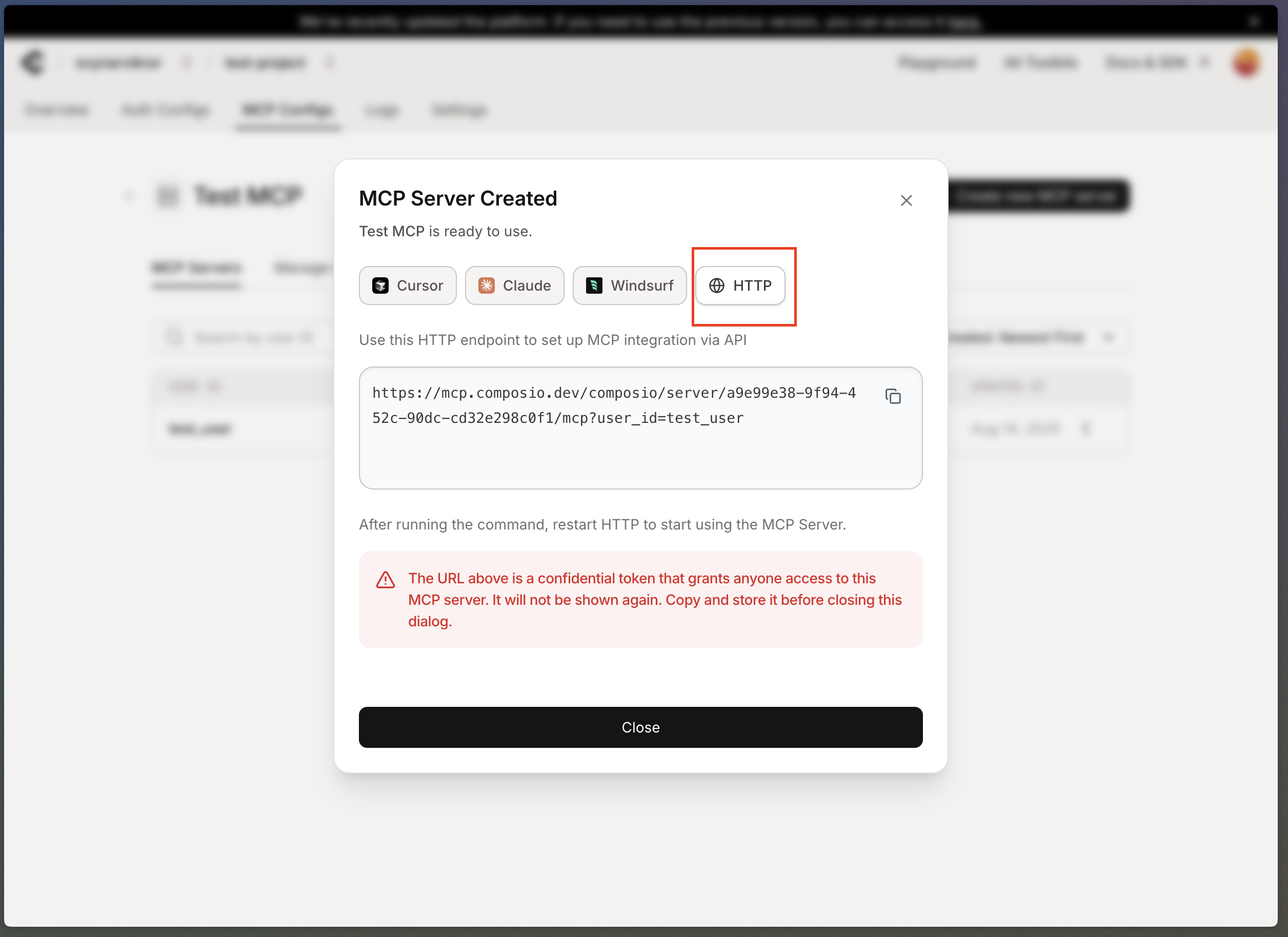
copy the MCP URL.
Connecting MCP to MyChatBot
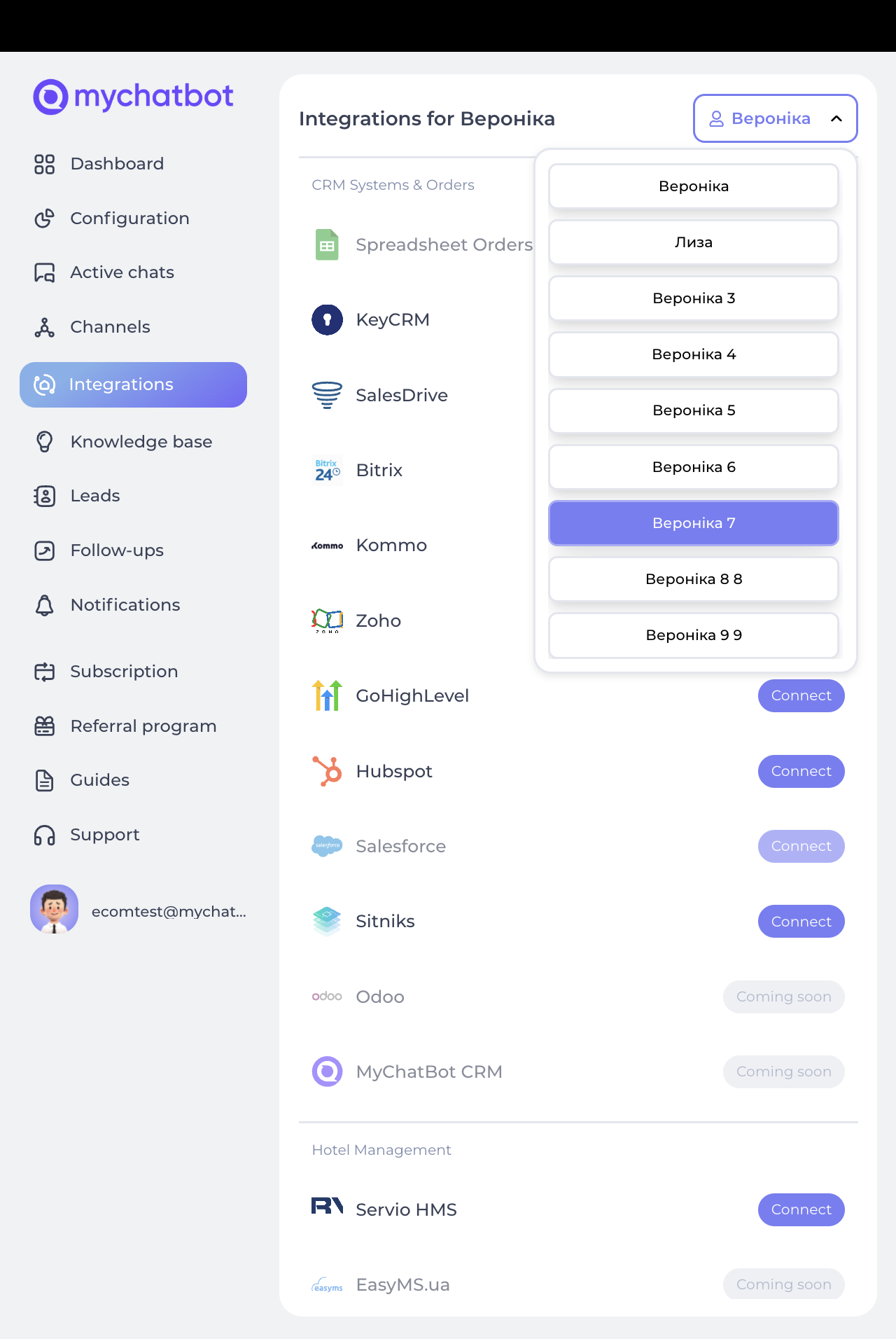
Step 1: in the MyChatBot dashboard go to Integrations, choose the agent, find MCP in the list, and click Connect.
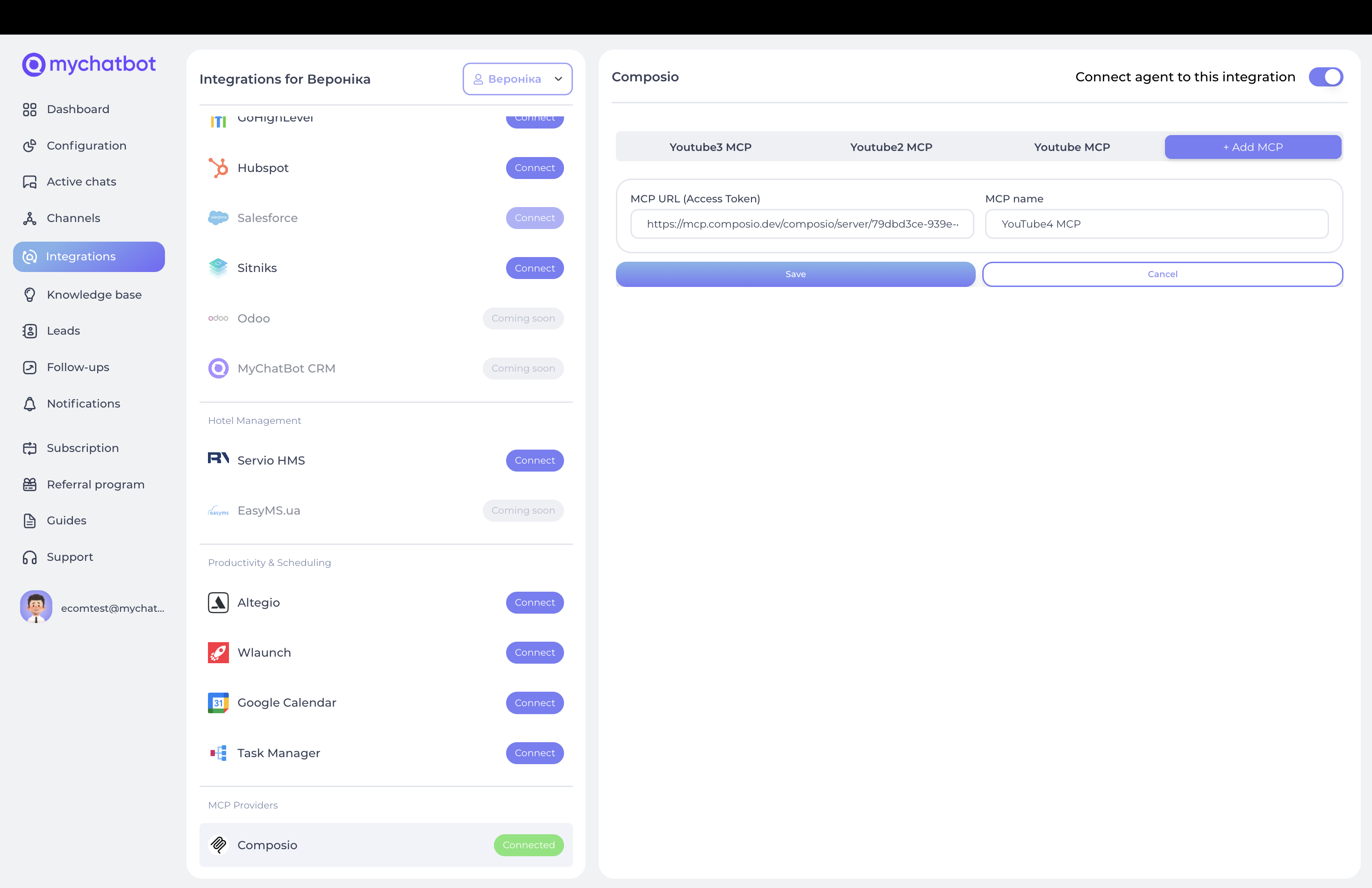
Step 2: provide Integration Name (descriptive) and MCP Server URL (from your deployed Composio tool), then click Submit.
The system automatically fetches available tools from your MCP server; review the tools that will be made available to your agent.
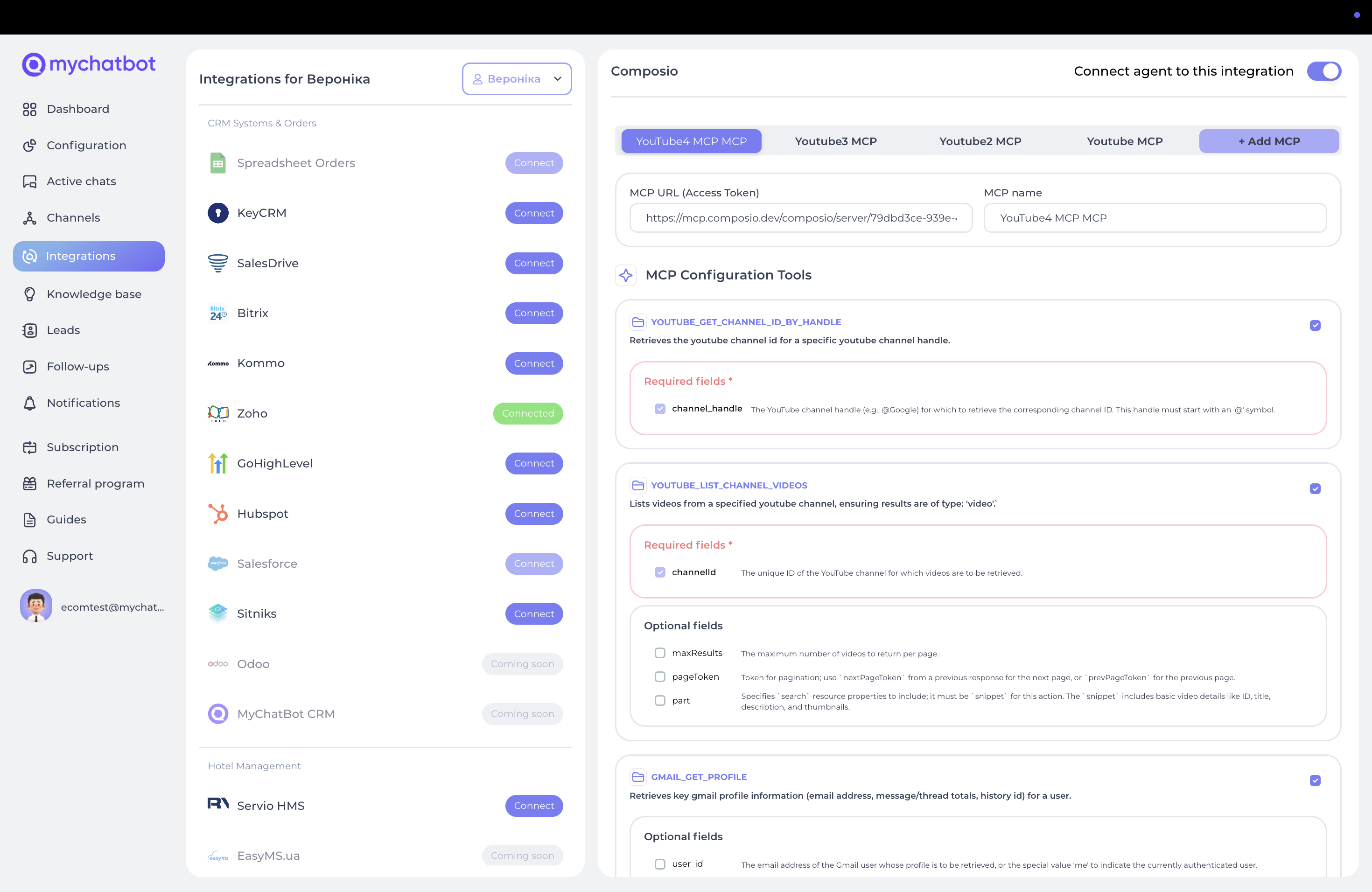
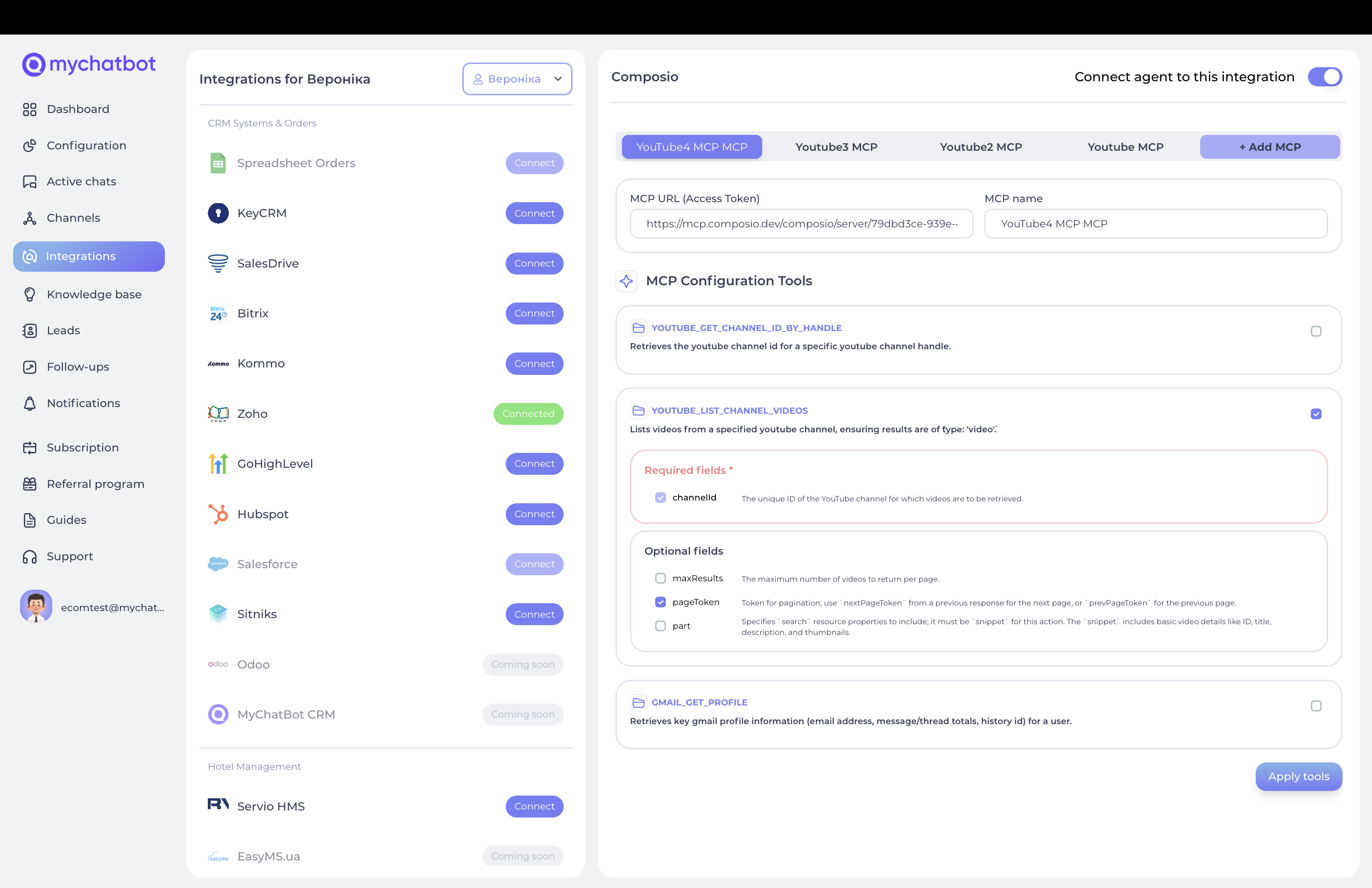
Configuring MCP tools
Review available tools: the system displays all tools from your MCP server, each with name and description, required and optional parameters, and expected output format.
Configure tool selection: review each tool, select which to enable for your agent, configure any tool-specific settings, and save.
Configuration in agent instructions
Basic usage: instruct the agent to use a named MCP tool with specific parameters and always validate the response and inform the customer of the result.
Error handling: on failure, check parameters, retry once for temporary issues, inform the customer of persistent errors, and suggest alternatives.
Multi-step operations: chain tools, gather info with one, process and continue with the next, confirm completion, and summarize all actions taken.
Troubleshooting
Common issues: MCP server unreachable (verify URL, deployment, connectivity); authentication errors (check connected accounts, expired tokens, re-authenticate); tool not found (verify configuration, exact name, enabled for the assistant); parameter errors (required vs optional, formats/types, special characters).
Getting help: check Composio docs for your integrations, review MCP server logs, test tools individually in the Composio dashboard, and contact support if issues persist.
Security considerations
Data protection: MCP tools process data through Composio's secure infrastructure; understand what data is shared with third parties and comply with privacy regulations. Access control: regularly review connected accounts and permissions, rotate auth tokens, monitor for suspicious activity. Best practices: least-privilege setup, keep MCP server URLs confidential, audit and update connected services, document all integrations.
Limitations & maintenance
Limitations: MCP tools depend on Composio availability; performance depends on third-party rate limits; some workflows need multiple tool calls; error handling depends on underlying service responses. Each service has its own rate limits, monitor usage and consider retry logic.
Updates & monitoring: regularly check for Composio integration updates, test after updates, update agent instructions if interfaces change, watch for deprecations; track success/failure rates and response times, and set alerts for critical failures.