
Before you start: 3 things to have ready
Connecting AI Voice takes about five minutes. Have three things ready: a phone number to call from (or to receive on), your product and policy data (a Product Feed or spreadsheet plus Business Domain docs), and a clear call objective, confirm, qualify, or sell. A focused voice agent beats a chatty one.
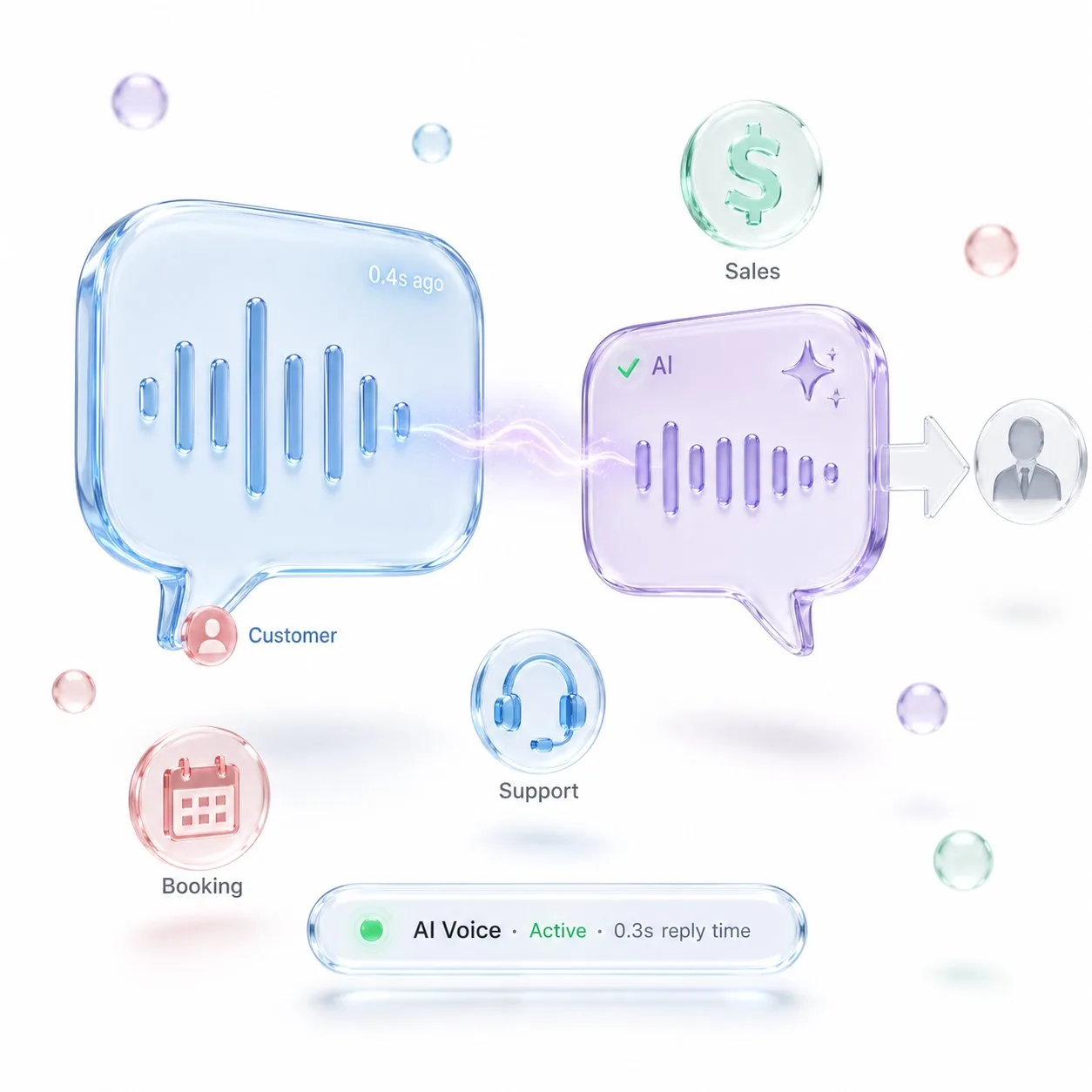
Step 1, Connect the number via the Calls SDK
In MyChatBot, open Channels and pick AI Voice. Connect a number through the Calls SDK and authorize, the capability discovery step, where the platform learns what it may do on your behalf. From here the agent can answer inbound calls and place outbound ones.
Step 2, Give the agent its Knowledge Base
Upload Business Domain docs and connect a Product Feed (XML) or Product Spreadsheet. This is the agent's memory: it answers price, availability and policy from facts on the call, with Agentic Search pulling only what is needed so latency stays low. Skip it and the agent stalls, so do not.
Step 3, Wire CRM, calendar and transfer
Connect your CRM, KeyCRM, SalesDrive, Kommo, HubSpot and more, so the agent runs create_crm_lead and create_crm_deal with a chat link on every call. Add Google Calendar for bookings. Then set Hand-off Control: the stop-phrase, conditions and live transfer or callback, with Flight Control alerting your team in Telegram. This is permission scoping.
Step 4, Test, schedule, go live
Place a few test calls, let the Configuration Wizard battle-test the script, and confirm the voice and pace feel natural. Set the Agent On schedule with graceful degradation if anything is down, turn it on, and watch the first calls. Five minutes to connect; the payoff is a phone line that answers, qualifies and books around the clock.