A broadcast that nobody answers is a waste. With MyChatBot every blast is backed by an AI agent that replies to each person individually, so a mass send feels like a personal chat.
Announce a launch, a promo or an update to your whole list, or a precise segment, across every channel they’re on.
The moment someone responds, the AI agent picks it up, answering questions, sharing prices and capturing the lead, one by one.
Honour opt-outs, watch delivery and open rates, and keep your sender reputation healthy, automatically.
Broadcasts in MyChatBot are one-time campaigns that send a message to a selected group of clients, right away or at a scheduled time. In the app they are called Immediate outreach and live on the Follow-ups & Outreach page.
The difference from a classic mailing tool is what happens after the send. Every message goes out on behalf of one of your AI agents, and when a client replies, that agent picks up the conversation: it answers questions using its knowledge base and can update the client’s funnel status and labels.
Typical uses include:
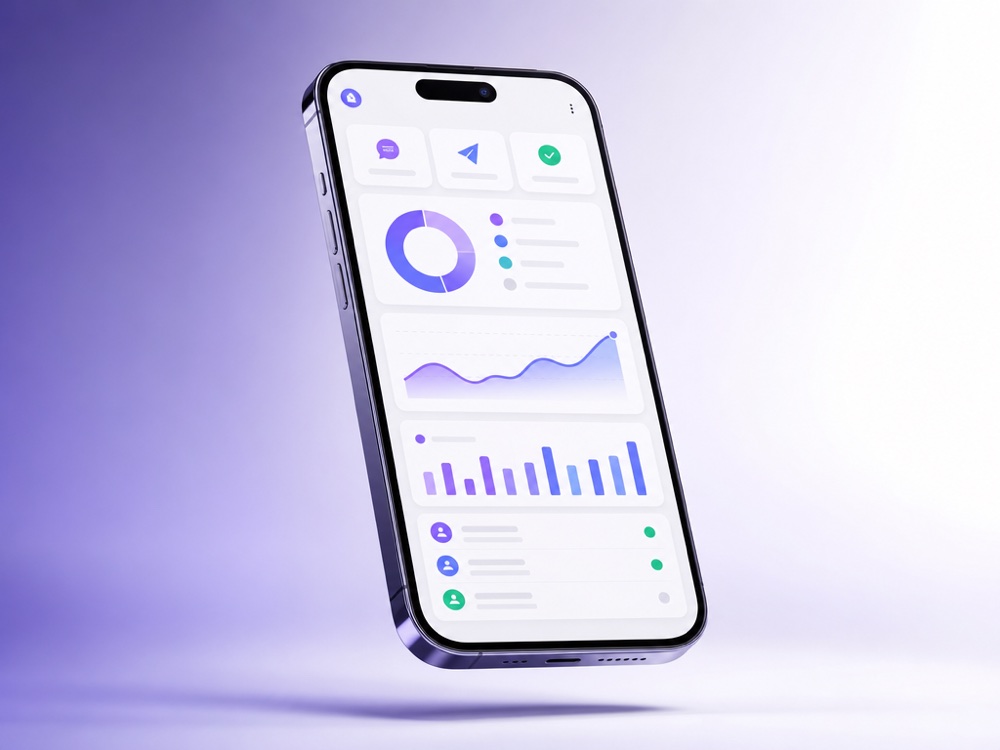
The status moves from Scheduled to Running to Completed with a live progress bar, and replies land in Active chats for the agent to answer.
Combine statuses, labels (clients must match all selected labels), pipeline, managers and the agent that handled the client. Filter by custom field adds up to 10 conditions on lead fields such as Location, and Audience limit caps a run at 1 to 10,000 clients, handy for a first test.
With Agent instruction you describe the outcome, tone and talking points, and the agent writes each message. Omit core instructions keeps the campaign message free of the agent’s usual sales persona. Both modes support attachments, and email sends get their own subject line.
Schedule for later shows an estimated start and end window. Call time adjustment per lead shifts sends into each lead’s own timezone, read from a field such as timezone. Sending interval limits the rate, for example 10 messages every hour, to reduce the risk of messenger bans.
Pause and resume a campaign, or return it to draft if it was paused before the first send. After the run, Outreach Results lists every client with the channel, a Sent or Failed status and the failure reason. By default the audience is frozen when you save; Dynamic audience re-evaluates the filters at send time.
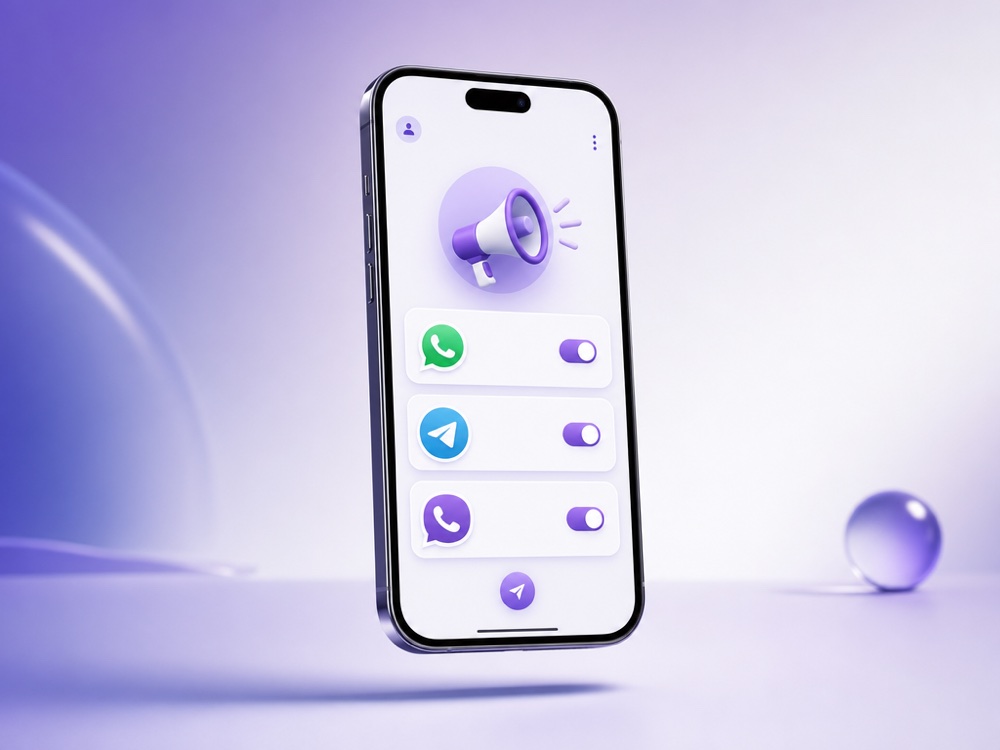
A broadcast can only start a conversation on channels that are able to message first. The wizard offers Personal WhatsApp, Telegram account, Viber, Email (your connected Gmail inbox), Calls and SMS, each listed with its agent. Telephony channels such as Ringostat and UniTalk can also reach leads who have never chatted.
Bot-type channels, including a Telegram bot, the WhatsApp Business API, Instagram and the website widget, can only reply to someone who wrote first, so they can’t reach cold leads. Several selected channels are tried in order until one send succeeds.
On the Calls channel a broadcast becomes a call campaign with its own number of concurrent lines.
Replies are handled like any other chat: the agent uses its knowledge base and applies labels and funnel statuses. When a CRM such as KeyCRM, Bitrix24 or HubSpot is connected, Sync statuses pulls its funnel stages into MyChatBot, so the statuses the agent sets match your pipeline. See all supported integrations.
Under Handoff Control in the agent settings you decide how a chat moves to a person: an operator types a stop word, or any operator message switches the chat to operator mode. Silent handoff keeps the switch invisible to the client, and Auto return from handoff gives the chat back to the agent after an interval (24 hours by default). The agent can also notify a manager when its instructions say so, and the alert reaches a Telegram group connected through Flight Control. More on the human handoff page.
A few limits are worth knowing before a big send:
You need an active subscription plan to create outreach.
Only channels that can start a conversation: Personal WhatsApp, Telegram account, Viber, Email (Gmail), Calls and SMS. A Telegram bot, the WhatsApp Business API, Instagram and the website widget can only reply to clients who wrote first. For clients who already have chats, you can keep the default and send to each client’s most recently active chat.
The AI agent behind the sending channel answers the reply as a normal conversation, using its knowledge base and instructions. It can set labels and funnel statuses, and your team can take over at any time through Handoff Control.
Yes. Custom message sends exact text with {name} and {context} placeholders, while Agent instruction lets the agent write a personalized message for each client. Both modes support attachments.
No. Broadcasts are CRM-driven outreach rather than a mass email platform, so there is no open or click tracking and no unsubscribe-link injection. Outreach Results shows delivered and failed sends per client with the error reason, and replies arrive as chats.
Set a Sending interval, a number of messages per time window, especially for cold audiences on personal messengers. Start with a small Audience limit to check the message, then widen the audience. The campaign header shows the estimated end time for the pace you chose.
Every message and call draws from your shared sales-message balance, the same balance used across all channels. If it reaches zero, all assistants switch off until you top up, so check the balance or enable auto top-up before a large send. Plans are described on the pricing page.
Yes. When you schedule for later, Call time adjustment per lead shifts the send into each lead’s timezone, read from a field in Additional information with an IANA value like America/New_York or a UTC offset. The value must be a timezone, not a place name.
Broadcast to thousands and let one AI agent turn every reply into a sale.
Start free