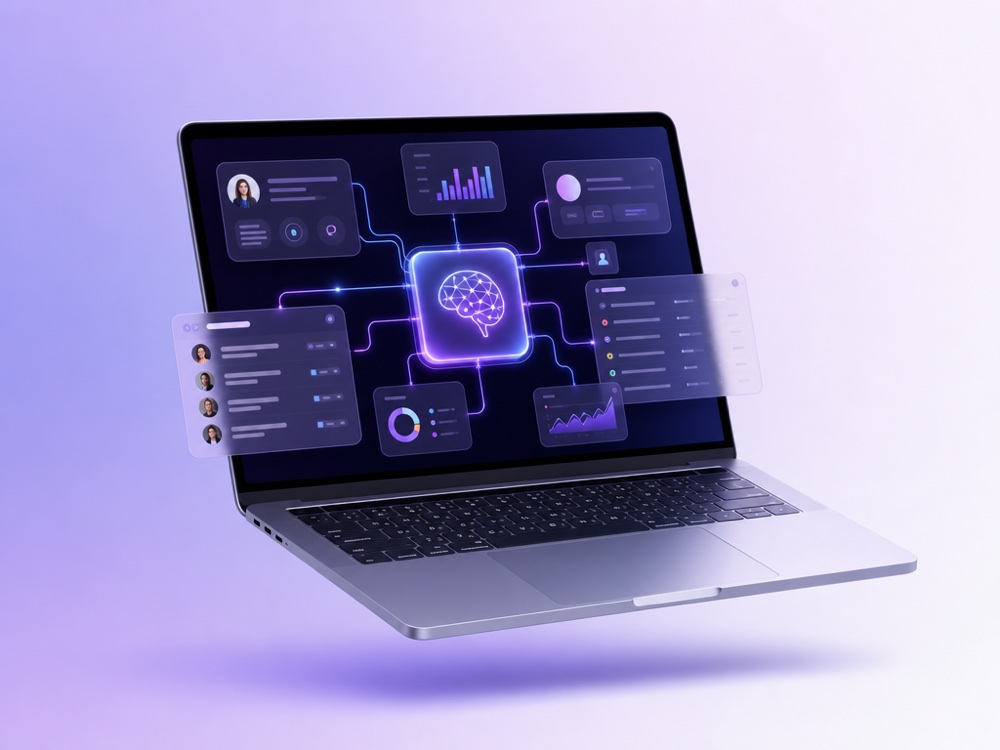
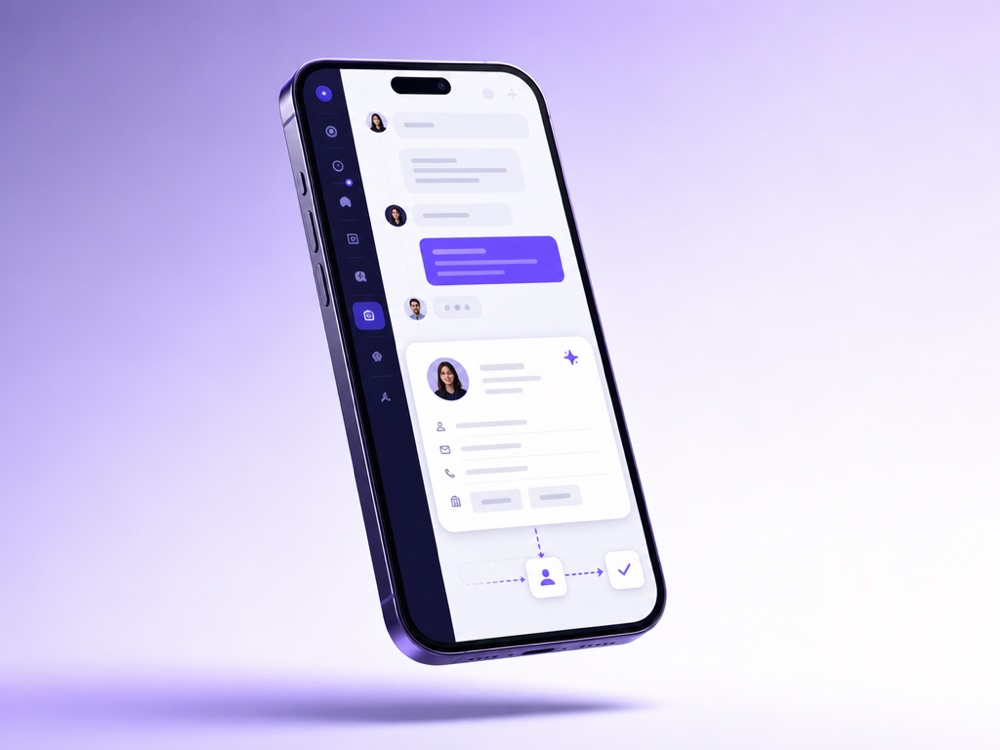
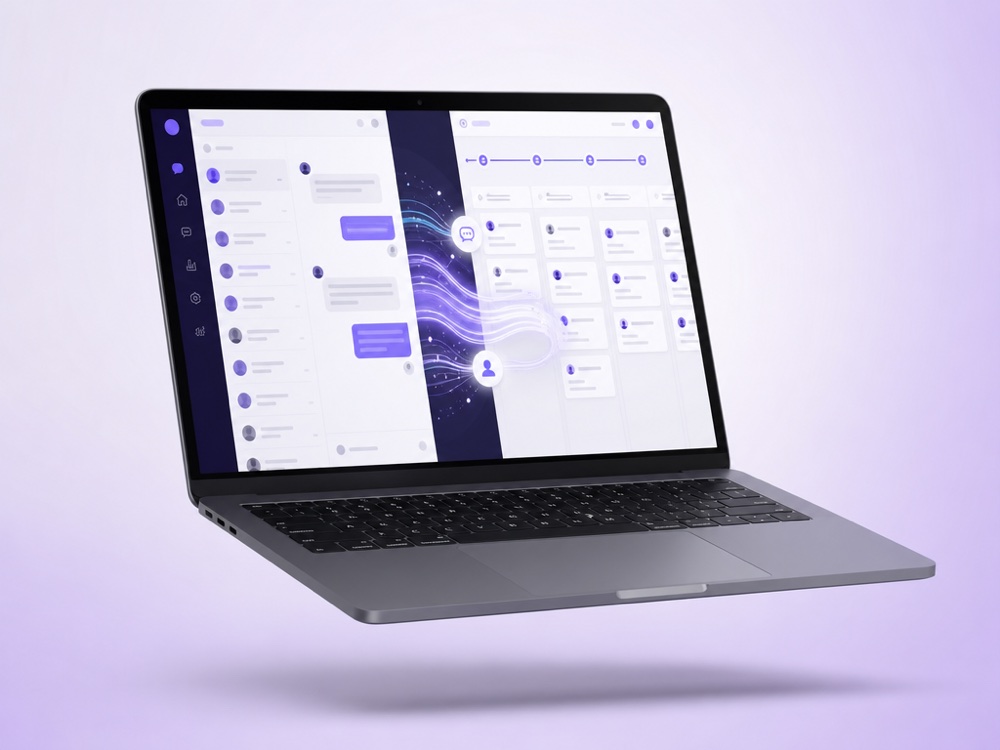
No more copy-paste. Your AI agent creates leads, opens deals and keeps contacts up to date in the CRM you already use, the moment a conversation happens.
When someone writes in on any channel, the agent creates the lead with name, contact and context, tagged with source “AI-” so attribution is clean.
As the conversation progresses, the agent opens and updates deals, edits fields and attaches the live chat link so your team sees the full picture.
KeyCRM, SalesDrive, Bitrix24, Kommo, Zoho, Salesforce, GoHighLevel, HubSpot, connect in a few clicks, or wire a custom system via the Webhooks API.
CRM Sync connects your MyChatBot AI agent to the CRM your team already works in. While the agent talks to a customer, it writes the conversation into the CRM as a lead, deal, order or contact, with exactly the fields you choose. Nobody copies names and phone numbers out of the inbox by hand.
It is built for businesses whose sales start in messengers and on the website: online stores that take orders in Instagram DMs, service companies that qualify requests in WhatsApp, and sales teams that run a pipeline in HubSpot, Bitrix24 or KeyCRM.
If you do not use an external CRM yet, leads, labels and funnel statuses still live on the Leads page of the MyChatBot Sales Platform. CRM Sync is for teams that want the agent to fill their own system.
The agent decides when to act from plain-language directives in its instructions, for example ‘when a customer confirms a purchase, create an order with their name, phone, delivery city and products’.
A record can start on any channel connected to the assistant: Website Widget, WhatsApp, Instagram, Facebook Messenger, TikTok, Telegram, Viber, Gmail, SMS, OLX or AI calls. In KeyCRM, and for deals in HubSpot, the source shows the channel itself, for example Telegram or WhatsApp.
Native CRM integrations with dedicated setup guides:
Sitniks, Monday, NetHunt, OneBox CRM and Odoo are also on the Integrations page with the same connect flow. For other tools, attach a Custom MCP server, and bring conversations from a custom messaging system in through the Webhooks API channel. See the full list on the integrations page.
Each assistant can have one CRM connected at a time. Once a CRM card shows Connected, the other cards in CRM Systems are grayed out for that assistant until you disconnect it.
In most CRMs the record carries a chat link, so a manager can read the whole conversation before calling the customer. When the agent decides a person is needed, it flags the chat for attention or hands it to an operator. With Flight Control connected, the notification reaches your Telegram group with the client’s name, phone, email and a chat link. Handoff Control defines the switch itself: a stop word, implicit handoff on any operator message, silent handoff and auto return to AI. Read more on the human hand-off page.
HubSpot, Salesforce, Zoho, Bitrix24, Kommo, KeyCRM, SalesDrive and GoHighLevel have dedicated setup guides. Sitniks, Monday, NetHunt, OneBox CRM and Odoo are also available on the Integrations page. Other tools can be added through a Custom MCP server.
You do not write code. You need admin access in your CRM to create an API key or app credentials, then you paste them on the Integrations page and choose the fields; some systems, such as Bitrix24 or Salesforce, ask you to create an app first. You tell the agent when to create records in plain language in its instructions.
Contacts are matched by phone number, so new leads and deals are linked to the existing contact. Turn on Lead Phone Required or Deal Phone Required so a record is written only after the agent has captured a phone number.
The Source field is filled automatically. In most CRMs it is AI- plus your assistant’s name; in KeyCRM it is the channel name or AI. In most CRMs the record also carries a link back to the conversation.
No. Sync statuses imports stage names from the CRM into MyChatBot, and nothing on the Leads board writes back. The CRM record changes through the integration itself, for example when the agent updates the deal during a conversation.
Yes, but integrations are configured per assistant. For a second assistant, choose the existing connection on the Integrations page: MyChatBot creates a copy, so fields, pipeline and sync settings can differ. Each assistant can have one CRM connected at a time.
On the Standard plan, or without an active plan, only Spreadsheet Orders can be connected and CRM integrations show a PRO chip. Check the pricing page for the plans that include CRM integrations.
Connect your CRM and let the AI agent keep it perfectly up to date.
Start free