NEWSequences Platform

AI Follow-up Sequences that revive every quiet lead

Most sales are lost in the silence after the first message. Sequences keep the conversation alive with perfectly timed, on-brand follow-ups your AI agent sends automatically.

01
Never drop a lead

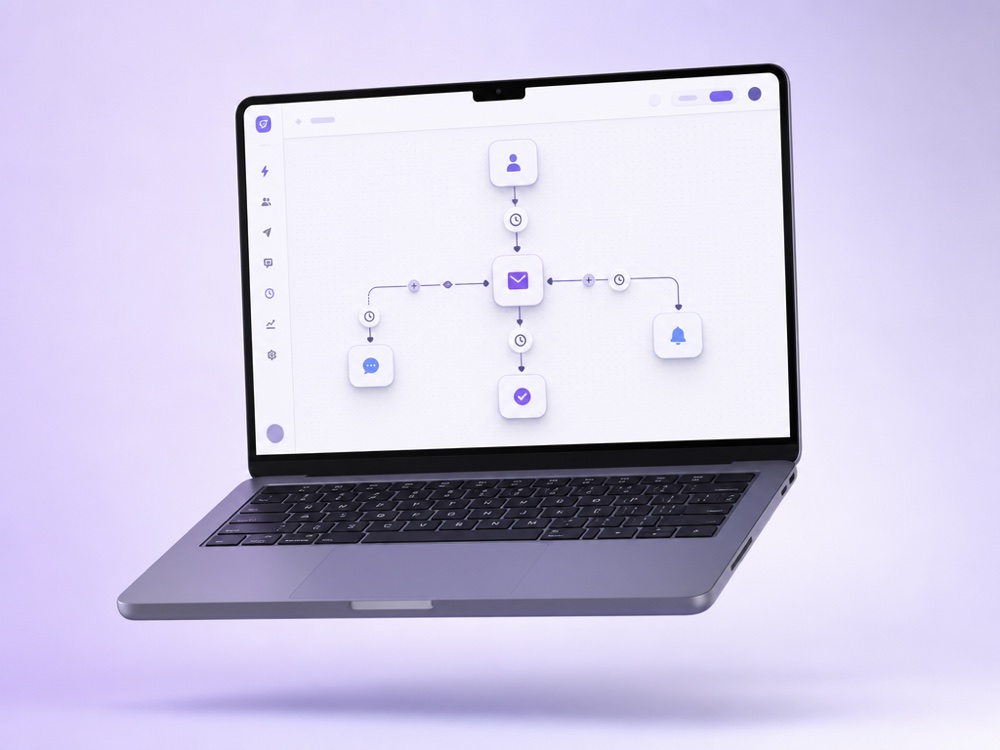
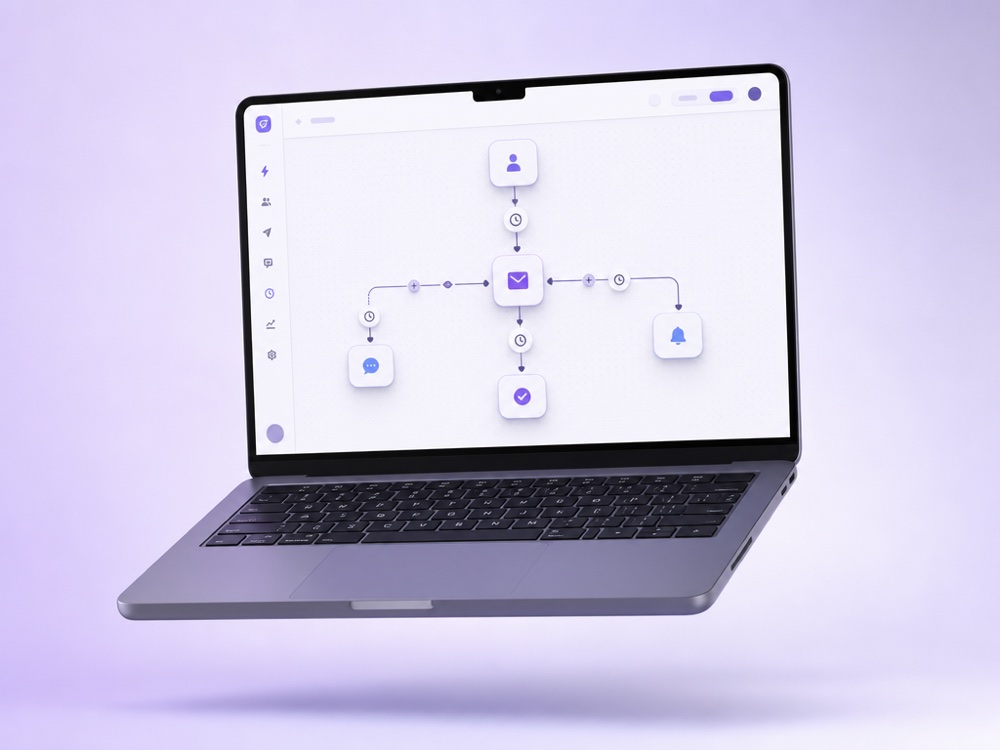
A follow-up plan that runs itself

Lay out the steps once, day 1, day 3, day 7, and the agent works the list for you, pausing the moment a lead replies or converts.

  • ✓Visual builder: order steps and set delays
  • ✓Auto-stops when a lead answers or buys
  • ✓One sequence works across every connected channel
A follow-up plan that runs itself
Timed to each contact, not a clock
02
Right message, right moment

Timed to each contact, not a clock

Each step fires relative to the contact’s last action and local timezone, so your message lands when they’re actually likely to read it.

  • ✓Delays measured from each lead’s last activity
  • ✓Sends in the contact’s timezone, not yours
  • ✓Branch by Labels & Statuses for different paths
03
Measure & improve

See what turns silence into sales

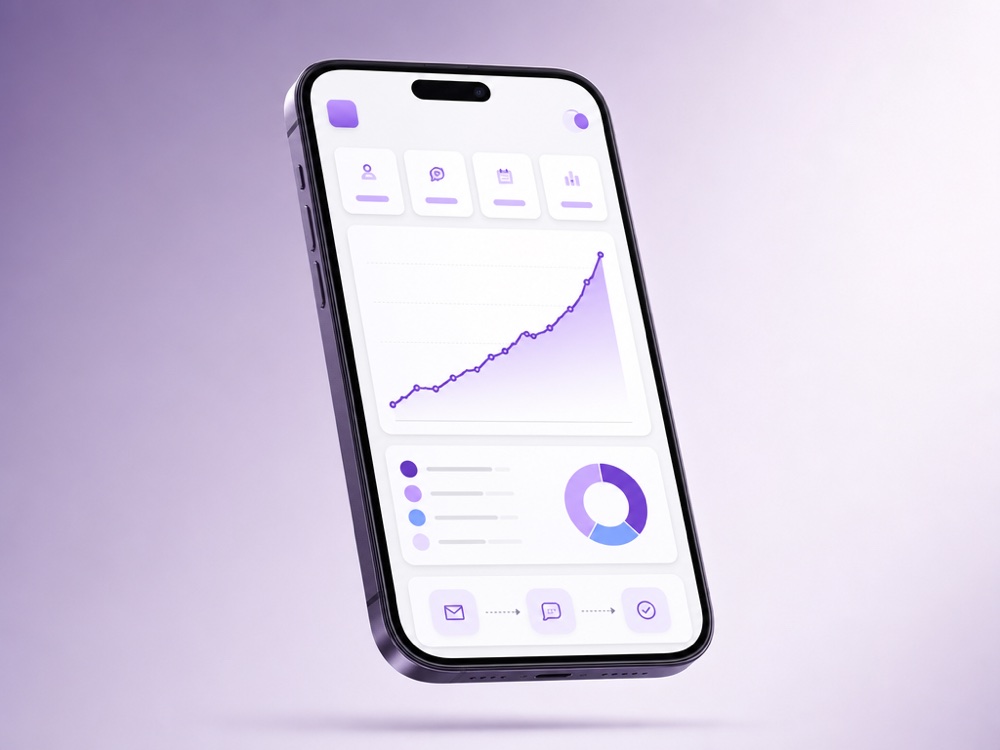
Every sequence reports replies, conversions and drop-off, so you can sharpen the steps that work and cut the ones that don’t.

  • ✓Reply and conversion rate per step
  • ✓Leads pushed to CRM with source “AI-”
  • ✓Hand off hot leads to a human via Flight Control
See what turns silence into sales

What follow-up sequences are and who they are for

A follow-up sequence is a chain of messages your AI agent sends when a client stops replying. In MyChatBot it is a Postponed contextual follow-up: it targets clients by funnel status and labels, waits for a set period of silence, then sends the next step. When the client answers, the remaining steps stop.

A lead asks about the price, gets an answer and goes quiet. Your team is busy or offline, and the lead cools down. A sequence makes sure the check-in happens for every matching client, even when nobody is online. It fits:

  • sales teams that need a reminder after sending a proposal;
  • online stores bringing back clients who left before ordering;
  • service businesses nudging people who never confirmed a booking;
  • teams that call leads and want to text those who did not pick up.

To message a whole segment once, use broadcasts (Immediate outreach). For first contact with new leads from forms and webhooks, use triggers and automations. Follow-ups revive conversations that already exist.

How a sequence runs in MyChatBot

  1. Your agent tags the conversation. It sets a funnel status and applies labels based on directives in its instructions, for example: when the client shares contact details, set the status qualified_lead. You can also set them manually on the client card.
  2. The client goes silent. A sequence targets a status, one or more labels (all or any of them) and, optionally, a pipeline. When a matching client stays silent longer than the entry delay, the entry step fires.
  3. The agent writes the message. A step is either Agent instructions, where the agent writes a personalized message from your goal and talking points, or a Custom message sent word for word.
  4. Further steps wait for more silence. Each step has its own delay after the previous one, for example: the entry step after 2 hours, step 1 a day later, step 2 three days after that.
  5. A reply stops everything. The condition for every step is silence, so any answer cancels the remaining steps and the agent carries on with the conversation.

Each step appears in the chat’s Activity History as a follow-up event with the step name, time and reason, and the list’s Executed column counts how many times each sequence has fired.

Key capabilities

  • Follow-up Builder. An Entry step card plus numbered Step cards: add, edit, reorder and delete steps, then save the whole sequence at once.
  • Precise targeting. In Start node settings, pick a pipeline, one funnel status and several labels with an and/or switch, so a dropped B2B lead and a qualified lead with a pricing question get different sequences.
  • Follow-up hours. Choose the days, hours and timezone in which the sequence may send, so messages do not arrive at night.
  • Attachments. Add up to 10 files of up to 10 MB each to a step, such as a price list.
  • Delivery-failure instruction. With Run alternative instruction if delivery fails, tell the agent what to do when a message cannot be delivered, for example create a deal or notify a manager.
  • Draft and publish. New sequences are drafts and send nothing until you publish them. Unpublish to pause without deleting.
  • Self-scheduled reminders. With Allow agent to self schedule follow-ups turned on, the agent can queue a one-off reminder during a chat, for example when it promises to check back tomorrow.

Channels and integrations involved

By default a follow-up goes out on the channel where the conversation lives, such as WhatsApp, Telegram, Viber or email. Two settings change the route. A step can have its own ordered list of channels, and delivery falls over to the next one if a send fails. Every connected channel also has a Follow-up channels list, used when a step has no channels of its own. A channel in that list can belong to another agent, which then writes the message with its own instructions and persona.

That is how follow-up after a phone call works. When an outbound call from your AI voice agent is not answered, the client’s status changes to NotAnswered automatically. A published sequence targeting that status fires for that client, and the message can go out through your chat agent’s Telegram account, with Viber as the fallback. Repeated auto-recall attempts do not trigger it again.

Labels and funnel statuses form MyChatBot’s built-in lightweight CRM. With an external CRM such as KeyCRM, HubSpot, Bitrix24 or Kommo, you can import its stages with Sync statuses, and status changes stay in sync between both systems, so sequences follow the same stages. See all integrations.

When a human takes over, and the limits to know

Once the client replies, the sequence stops and the agent or your team takes over.

Taking over a chat is set up in Hand-off Control. An operator switches a chat to operator mode with a stop word, or with any message if implicit handoff is on. Silent handoff hides the switch from the client, and auto return turns the agent back on after 24 hours or a custom interval. Read more about human handoff.

Limits to plan around:

  • A sequence fires only for clients who carry the targeted status or label. If the agent’s instructions never set them, nothing is sent.
  • A published sequence must be attached to the agent under Toolkit, Follow ups. For missed calls, attach it to the voice agent that owns the Calls chat.
  • The official WhatsApp Business channel requires pre-set message templates for some business-initiated messages, for example after the messaging window has closed.
  • The Create button is unavailable without an active subscription plan. Plan details are on the pricing page.
  • Keep sequences to 3–5 messages, use a different hook in each one and increase the gaps between them.

How to set it up

  1. Create labels and statuses. Add them on a client card in Active chats or import stages from your CRM with Sync statuses.
  2. Tell the agent when to tag. For example: if the customer stops responding, set the status dropped.
  3. Create the sequence. Go to Outreach, click Create, enter a name and choose Postponed contextual.
  4. Set targeting and timing. In the Follow-up Builder, click Edit targeting & intro and pick the pipeline, status, labels, Follow-up hours and entry delay.
  5. Write the steps. Choose Agent instructions or Custom message, add attachments and set the delay.
  6. Publish and attach. Publish it and add it to the agent under Toolkit, Follow ups.
  7. Test it. Target a test status with a 2–3 minute delay, set that status in a test chat and stay silent. The entry step should arrive and the Executed column should increase; reply, and the remaining steps should stop.

Frequently asked questions

How is a follow-up sequence different from a broadcast?

A sequence (Postponed contextual) fires for each client separately when a client with a matching status or label goes silent, and it runs step by step. A broadcast (Immediate outreach) is a one-time campaign to a selected segment, sent now or at a scheduled time. They work well together: a broadcast wakes up a segment, and a sequence follows up with the people who stay quiet.

Does the sequence stop when a lead replies?

Yes. The condition for every step is silence, so any reply from the client stops the remaining steps. The agent then continues the conversation as usual.

Is every lead sent the same message?

You decide per step. With Agent instructions the agent writes a personalized message from your goal and talking points. With Custom message the exact text you wrote is sent.

Can I control when messages are sent?

Yes. In Start node settings, Follow-up hours let you pick the days of the week, hours and timezone in which the sequence may send. Each step also has its own delay in days, hours, minutes or seconds.

Why didn’t my sequence fire?

Most often the client never received the targeted status or label, because the agent’s instructions do not say when to set it. Also check that the sequence is published rather than a draft and attached to the right agent under Toolkit, Follow ups. The chat’s Activity History shows follow-up events, including postponed steps and the reason.

Which channel does a follow-up use?

By default, the channel of the conversation itself. A step can carry its own ordered list of channels with automatic fallover, and each channel has a Follow-up channels list in its settings, which can include channels that belong to another agent.

Can a sequence follow up on unanswered calls?

Yes. When an outbound call is not answered, the client’s status changes to NotAnswered automatically, which arms any published sequence targeting that status. Attach the sequence to the voice agent and route delivery to a text channel such as a Telegram account.

Turn your follow-up into a system

Set the steps once and let your AI agent nurture every lead to a yes.

Start free