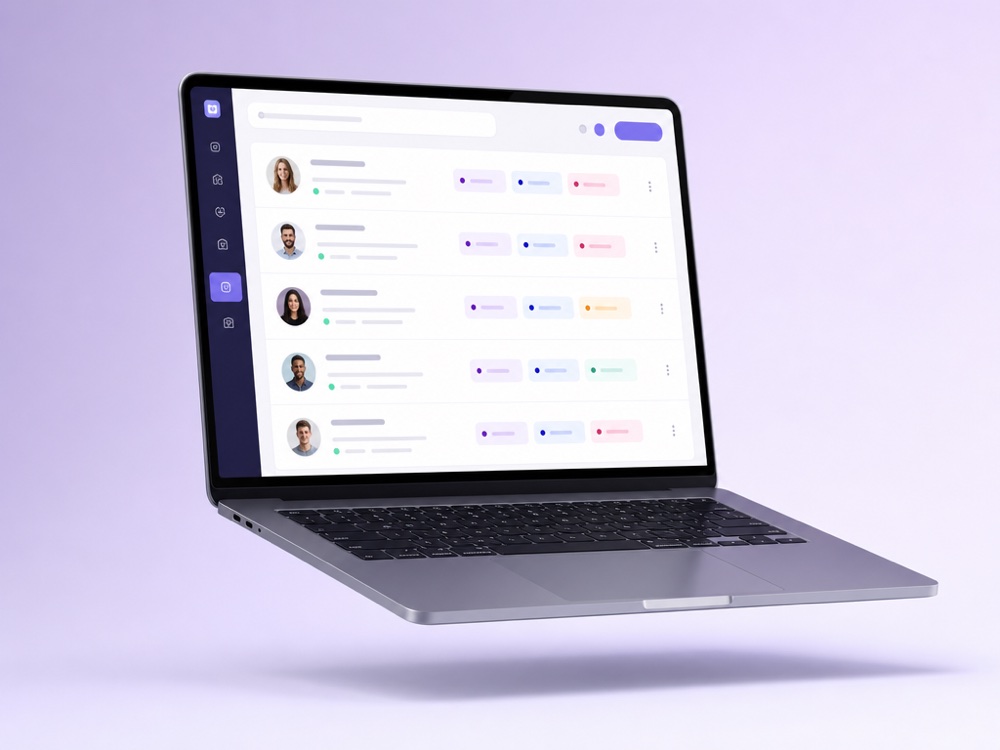
Scale support and sales without chaos. Invite teammates, give each the right access, and let humans and AI agents collaborate on the same conversations, seamlessly.
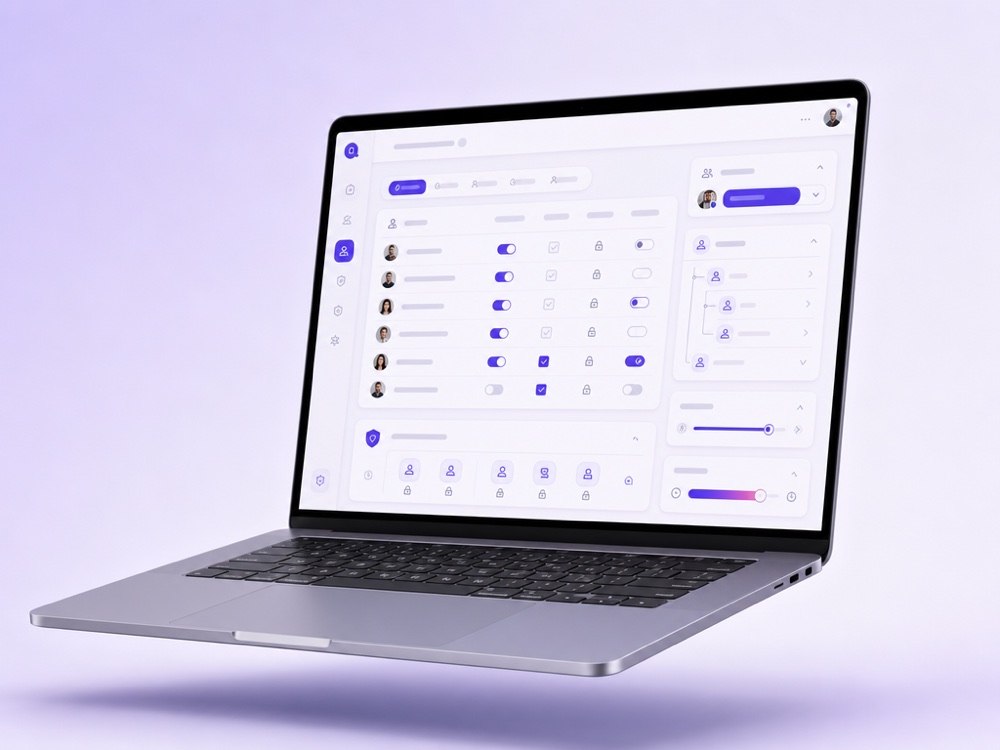
Give each person exactly what they need, from full admin to a single-channel operator, so the right people touch the right conversations.
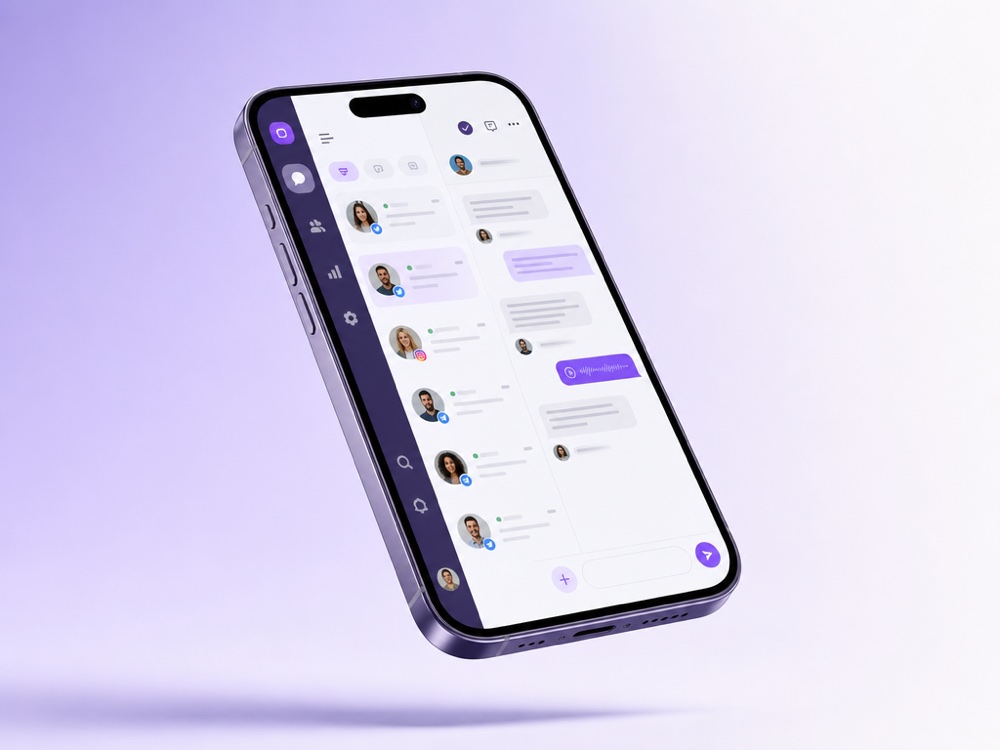
Assign chats to teammates, let the AI agent handle the rest, and switch between them mid-conversation without the customer ever noticing a seam.
Run several AI agents, sales, support, content, alongside your team, each with its own schedule and Agent On/Off control.
Team & Roles is how you bring people into the same MyChatBot account as your AI agents. Your sales assistants answer customers across channels, and your team works next to them in one shared inbox, Active chats. You decide which agents’ chats each person sees, and only Admins can change roles and permissions.
It fits businesses where AI handles most conversations but humans still close deals, calm down unhappy clients or answer questions the agent should not guess at: online shops, service businesses, agencies, support desks. It also fits supervisors who need to know how quickly managers reply.
The setup lives on two pages under your profile:
While a chat is in operator mode, the teammate can still use the AI: Generate reply drafts an answer from the chat history and assistant instructions for review, and Run assistant once posts a single agent reply without switching AI back on.
Roles on Team & Access Levels:
The Access rights by role matrix governs leads, analytics, finances, products and team management. Chat visibility is set per AI agent: in an operator’s Access scope, pick the agents they can see, and they get only the chats those agents handle. Linked pipelines come from each agent’s Lead Management settings. An empty scope grants access to all agents, and the account owner and Admins always see every chat.
For supervisors, Quality Control lists the account owner and every operator with active leads, availability (Online, Away, Busy, Offline, derived from app activity), average first response, replied and total handoffs, and total processing time. An AI reviewer scores finished handoffs from 0 to 100 on tone, helpfulness and whether the customer’s need was addressed. The Unassigned active leads card shows open leads still waiting for a manager.
Chats from WhatsApp, Instagram, Telegram, Facebook, TikTok, Viber, email, SMS, calls and the Website Widget arrive in the same Active chats list. Because access scope is set per agent, you can give one group of teammates your support agent and another group your sales agent. Several active assistants require Multipro or above; on Standard and Pro one assistant stays active at a time.
Handoff Control in each agent’s settings defines how switching works. Pick one of two modes:
Turn on Silent handoff if the client should not be notified about the switch. Auto Return hands the chat back to AI after 24 hours by default, or after a custom interval from 1 minute to one week. More on the human handoff page.
Know these limits before you invite the team:
There are five roles: Admin with full access, Sales Lead with team access, Manager and Operator with access to their own data only, and Analyst with reports access. Only Admins can change roles and permissions. The Access rights by role matrix covers leads, analytics, finances, products and team management.
Yes, per AI agent. In the operator’s Access scope you pick the agents they can see, and they get only the chats those agents handle. Leave the scope empty to grant access to all agents. The account owner and Admins always see every chat.
No. The Manager field is for routing and reporting: it feeds the Managers filter and the lead distribution metrics. Chat visibility is controlled only by each operator’s Access scope.
With Implicit operator handoff, any operator message switches the chat to operator mode and the agent stops replying. With a stop word, only that keyword switches it. Auto Return hands the chat back to AI after 24 hours by default, or after a custom interval you set.
Open Quality Control, which is visible to account admins. It shows each team member’s active leads, availability, average first response, replied and total handoffs, total processing time and a quality score from an AI reviewer.
Yes, if your plan allows several active assistants, which is Multipro and above; on Standard and Pro one assistant stays active at a time. Create a copy of your assistant, point channels at the right one, and set each operator’s Access scope to the agent they work with.
When the agent sends an operator notification or hands a chat off, the chat is flagged on the Attention tab with sound and attention alerts. If a Telegram group is connected under Flight Control, operator notifications also arrive there with the client’s name, contact details and a link to the chat.
Give people and AI agents a shared inbox with the right roles for everyone.
Start free