
Overview
The Zoho CRM integration allows your agent to create and manage leads, deals, and contacts directly in your Zoho CRM account. This enables your AI assistant to perform CRM operations without human intervention, streamlining your sales process and customer management.
App creation on Zoho
- Log in as an administrator and go to the Zoho Developer Console at api-console.zoho.eu
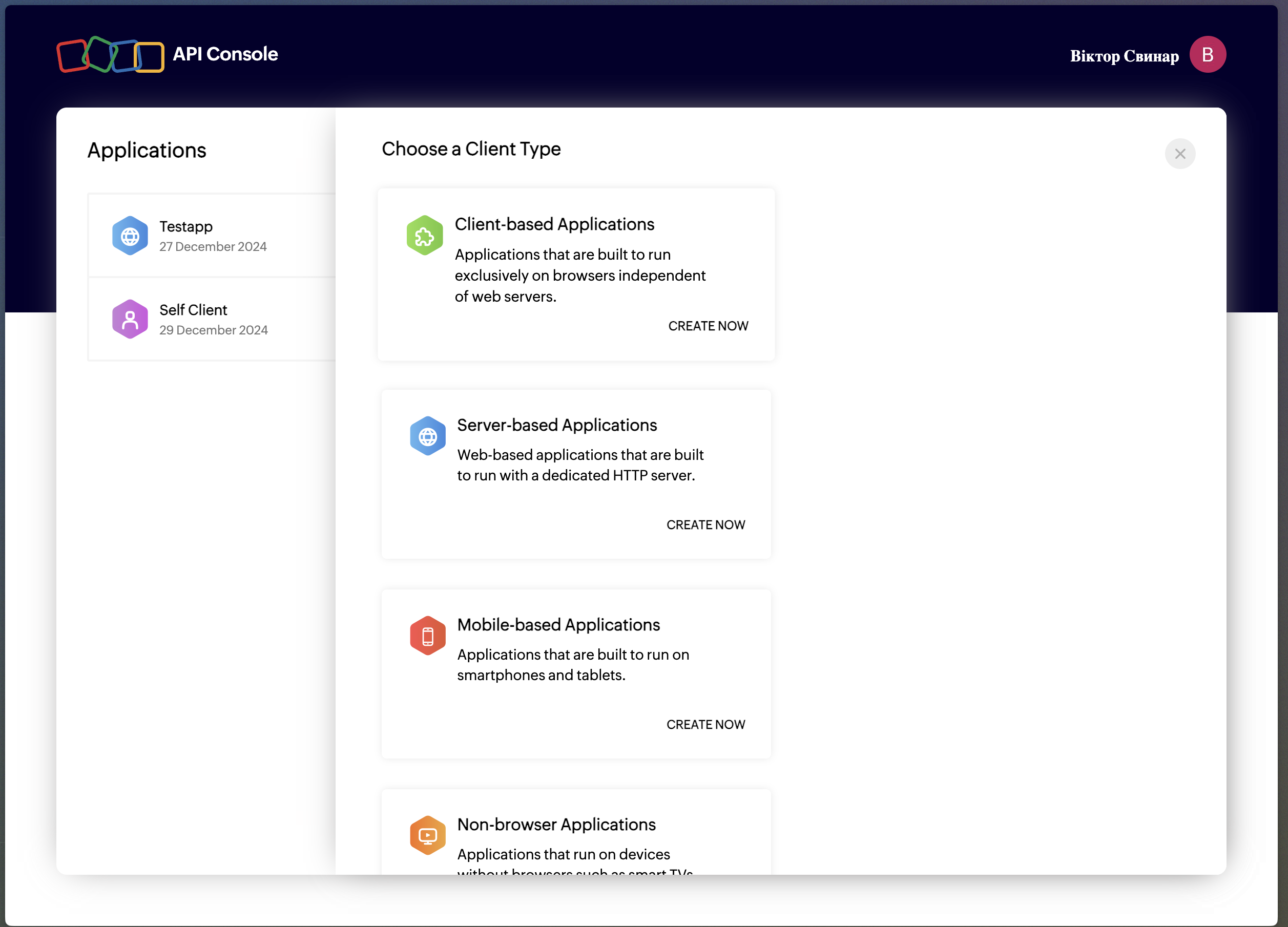
- Click Add Client
- Select Server-based Applications
- Fill in: Client Name = MyChatBot Integration; Homepage URL = https://app.mychatbot.app; Authorized Redirect URIs = https://app.mychatbot.app/integration; Description = AI assistant integration for Zoho CRM
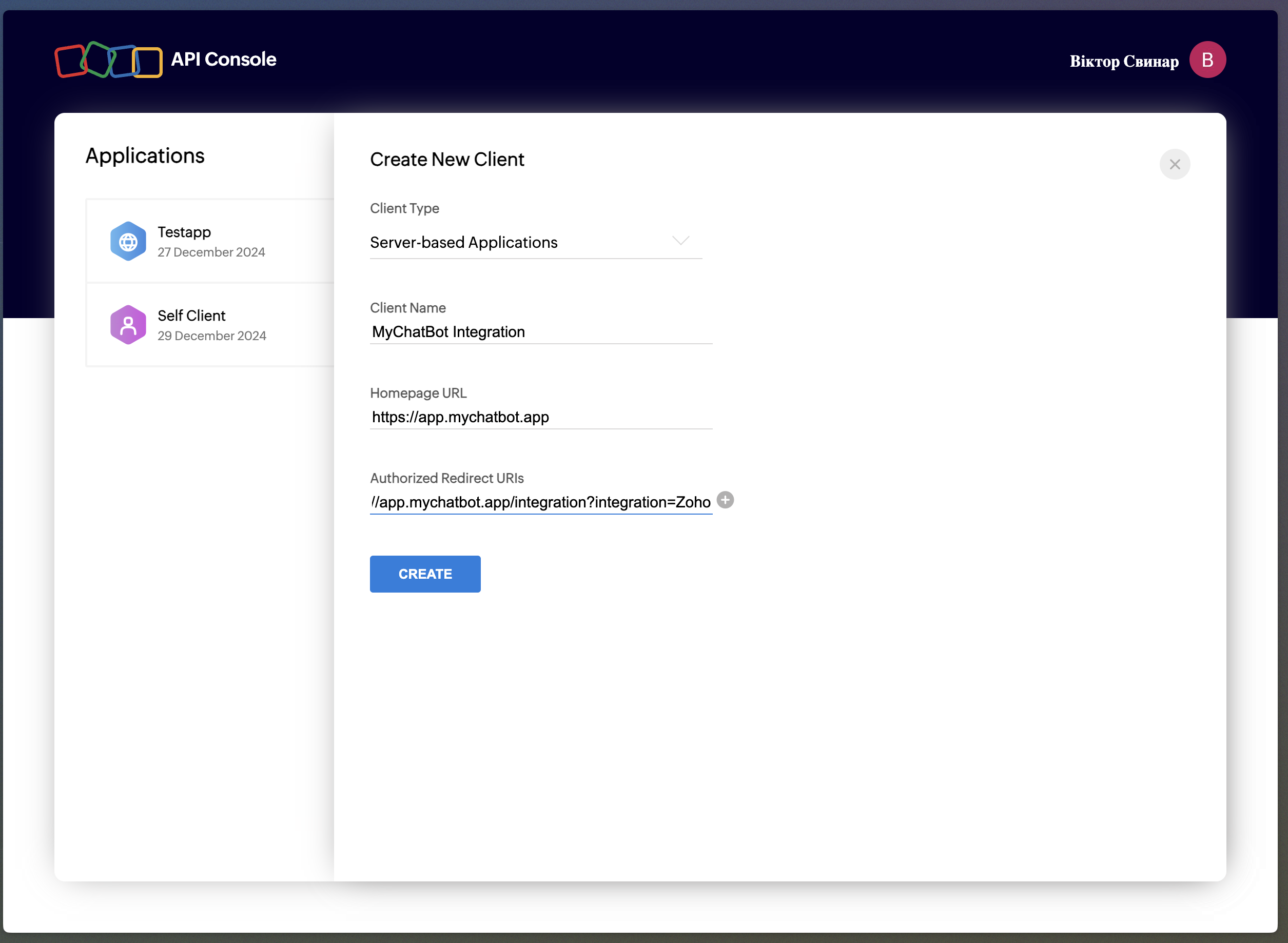
- Click Create to generate client credentials
- Copy Client ID and Client Secret
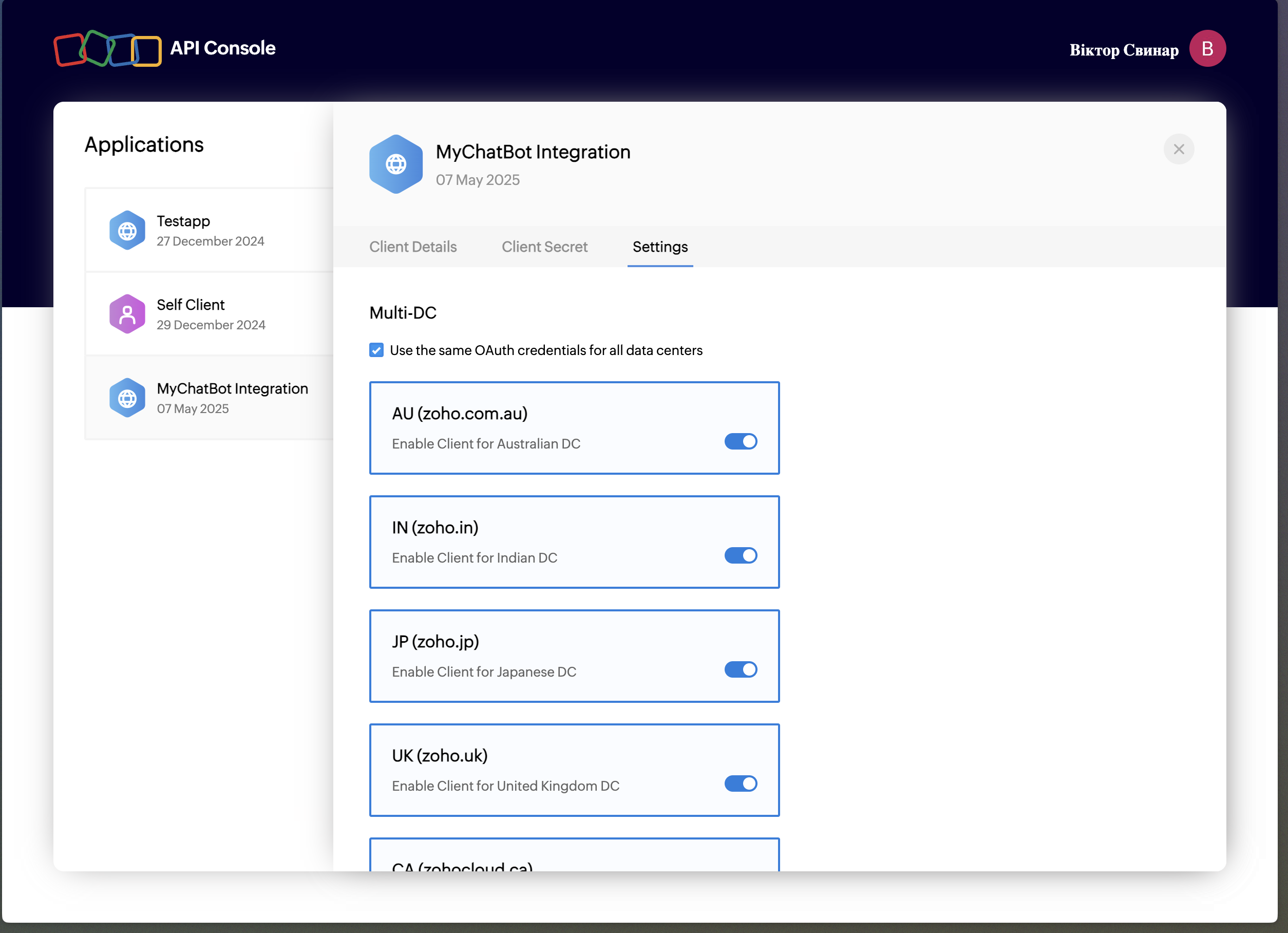
- Check the box to allow Multi-DC use
Creating integration on MyChatBot
- Navigate to the Integrations tab in your dashboard
- Select the agent you want to connect to Zoho CRM
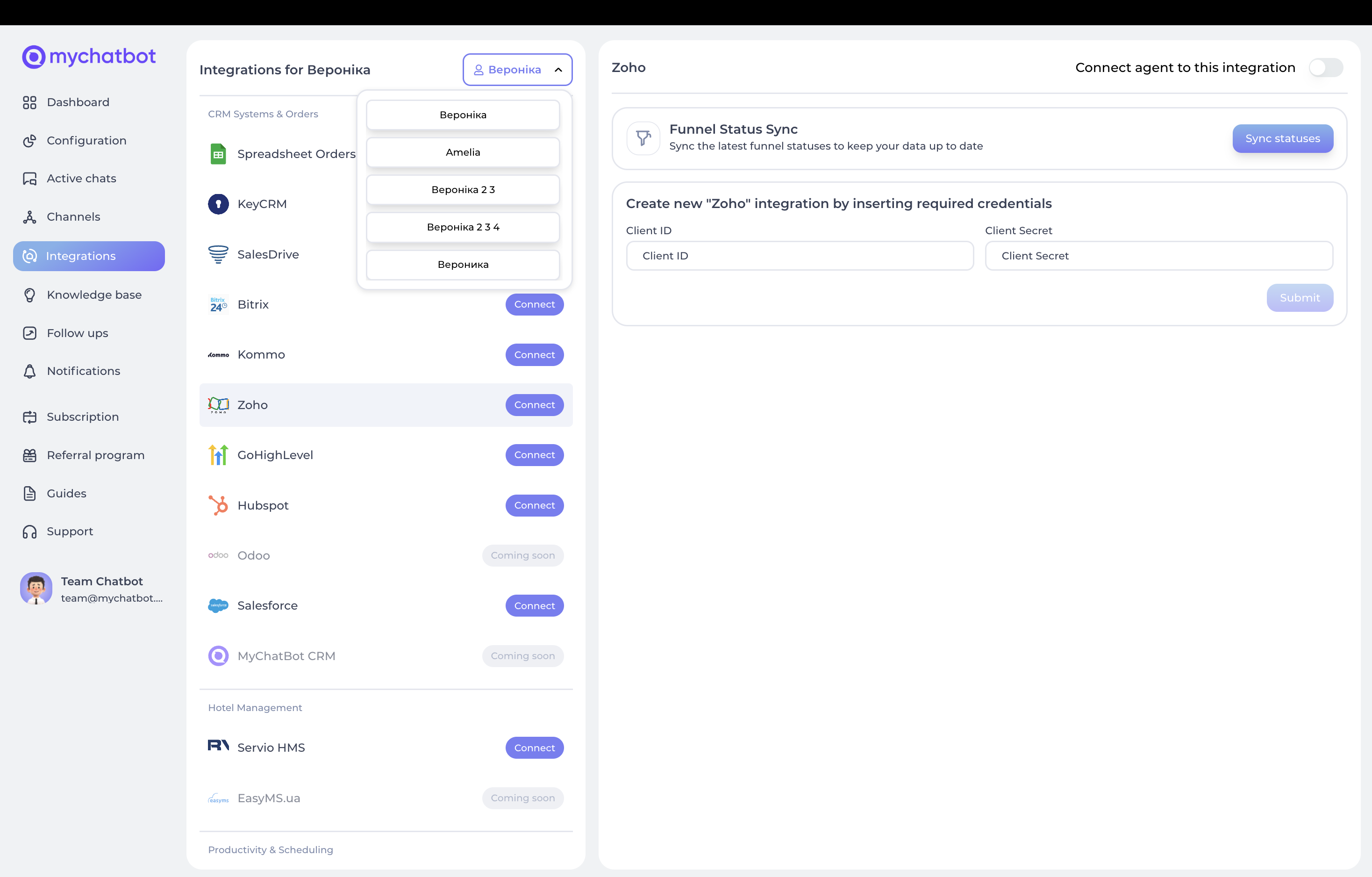
- Scroll down to find Zoho CRM in the integrations list
- Click Connect
- Provide Client ID, Client Secret, Access Token and Refresh Token
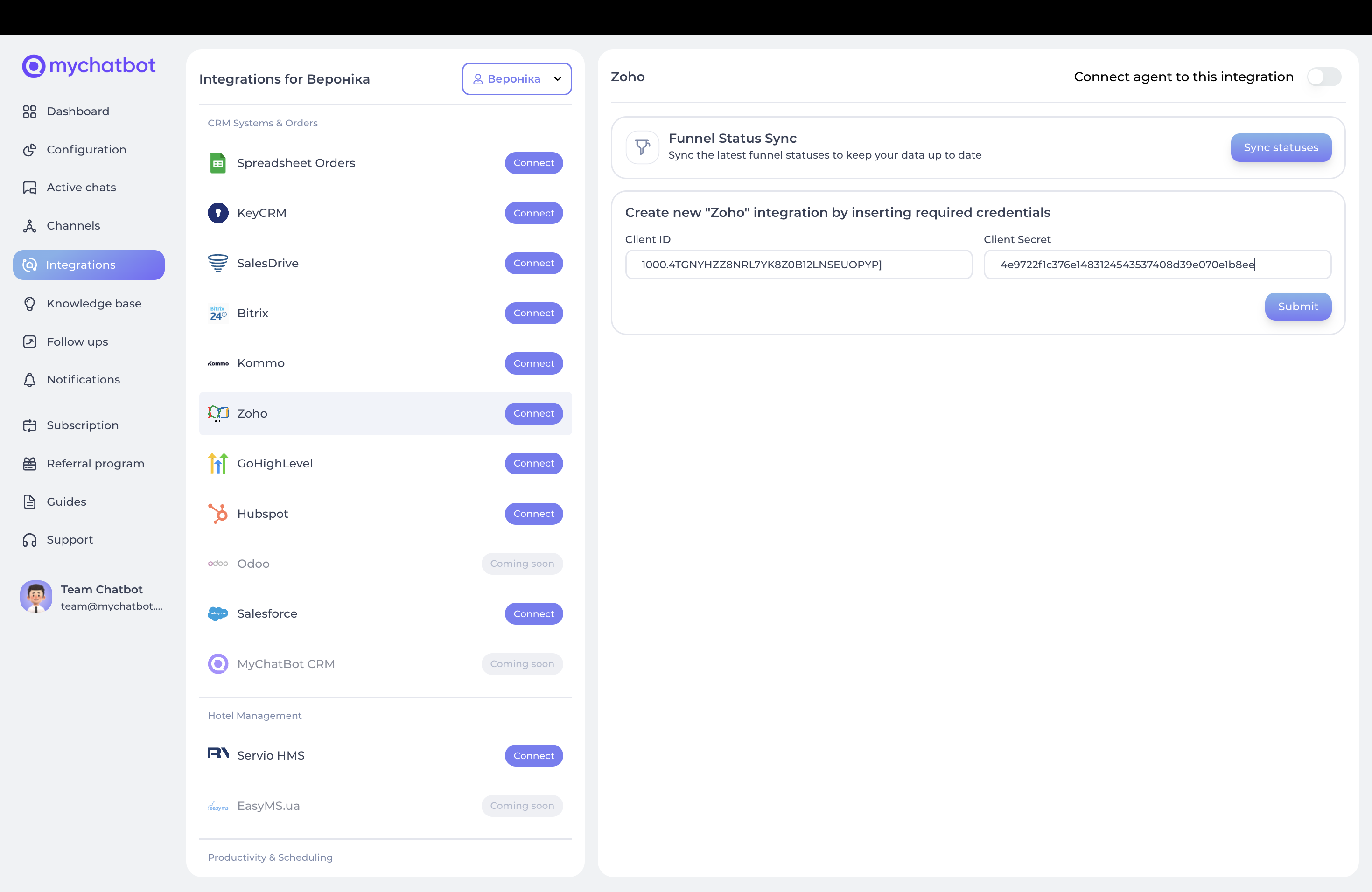
- Click Submit to save your integration
Entities & data fields configuration
After connecting, configure which entities and fields your agent can access:
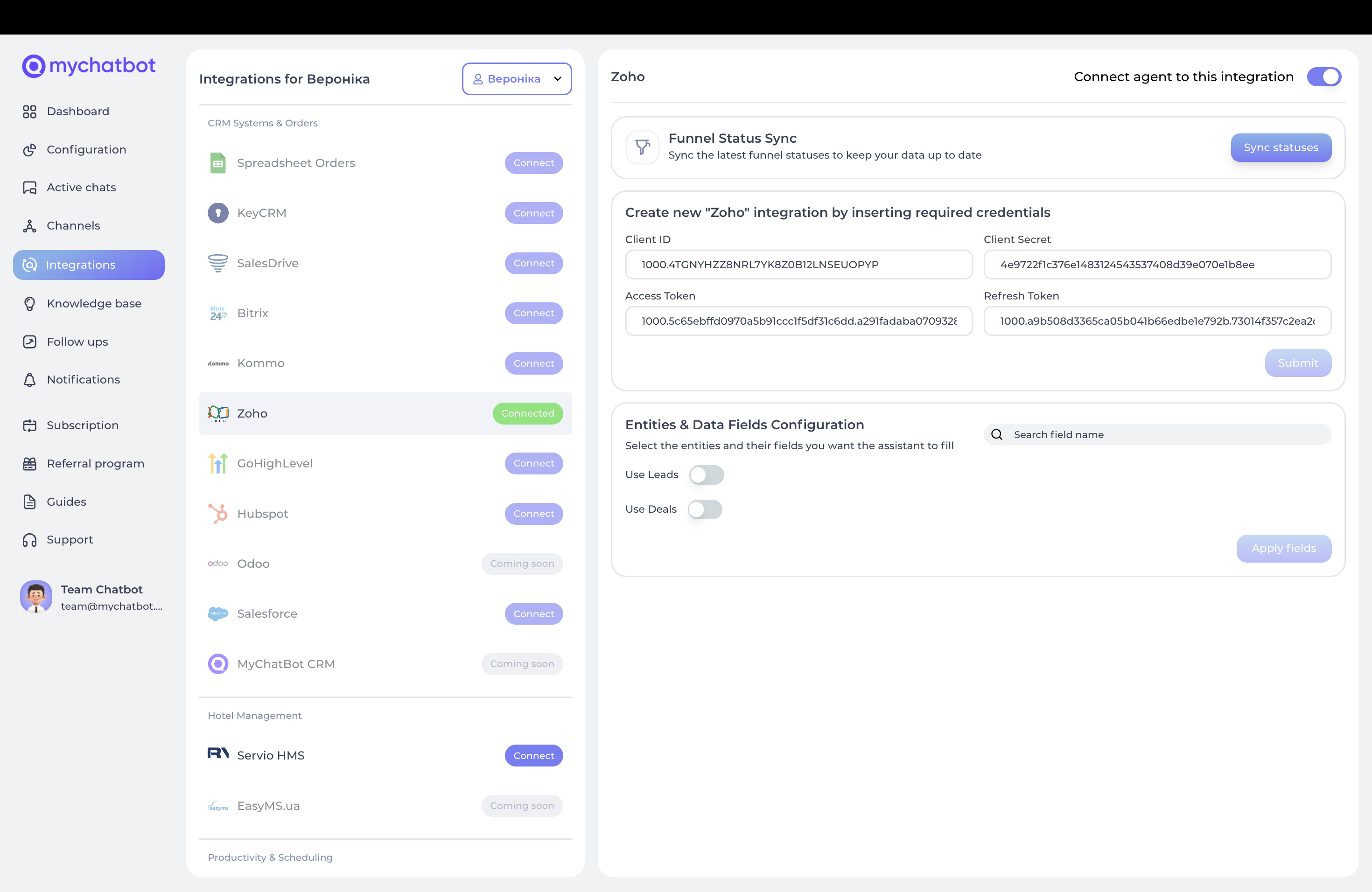
Toggle Use Leads and Use Deals. For each entity select standard Zoho fields and custom fields, then click Apply fields.
Entity types: Leads, Deals, Contacts. Field types: Standard and Custom. Special fields: Lead_Status/Status (values like "New", "Contacted", "Qualified"; must match Zoho), Lead_Source/Source (auto-set to "AI-" + assistant name), Description/Chat Link (auto-populated link to the conversation), Closing_Date (required for deals; valid date format). Custom fields: if a custom field doesn't exist, the system tries to create it (limit 10 per module); supported types are text (up to 150 chars), date, number, and choice/dropdown.
Available tools
After connecting, your agent gets four tools:
1. create_crm_lead, creates leads (full_name required, phone, Status/Lead_Status, custom fields). Source set to identify the AI, chat link included, contact linked if a matching phone is found.
2. edit_crm_lead, updates existing leads (full_name, phone, Status/Lead_Status, custom fields).
3. create_crm_deal, creates deals with contacts (full_name required, phone required, Closing_Date required, Amount, custom fields). Contact and account auto-created/found, source set, chat link included, existing lead updated if applicable.
4. add_crm_client_contact, adds contact info (full_name required, phone required), useful for capturing details before a lead/deal.
Configuration in agent instructions
Creating leads:
When a new customer contacts us, use create_crm_lead in Zoho with:
- Their full name
- Phone number
- Set status to "New"
- Add any additional information they provide to custom fields
Creating deals:
When a customer is ready to make a purchase:
1. Use create_crm_deal with their contact information
2. Include their full name and phone number
3. Set the closing date to 7 days from today
4. Add the deal amount based on their product selection
Best practices & troubleshooting
Best practices: move leads logically through the pipeline (New → Contacted → Qualified); collect complete contact info, needs and timeline; create deals when buying intent is clear and pricing discussed; use custom fields for industry info, preferences, special requirements and referral source.
Troubleshooting: Authentication, keep access/refresh tokens current and regenerate in Zoho if auth fails. Field limits, if you hit the 10-field limit, prioritize the most important fields. Data mapping, ensure field names match exactly (case-sensitive). Date format, use YYYY-MM-DD for Closing_Date.